> For the complete documentation index, see [llms.txt](https://docs.duplicati.com/llms.txt). Markdown versions of documentation pages are available by appending `.md` to page URLs; this page is available as [Markdown](https://docs.duplicati.com/backup-destinations/standard-based-destinations/ftp-destination.md).
# FTP Destination
This page describes the FTP storage destination
The FTP protocol is widely supported but generally, [FTP is considered a legacy protocol with security issues](https://serverfault.com/questions/1163510/ftp-for-what-it-is-used-for-why-its-urls-sometimes-begin-with-http-and-i) despite correct implementation. Due to its continued ubiquity, it is still supported by Duplicati using [FluentFTP](https://github.com/robinrodricks/FluentFTP).
## User interface
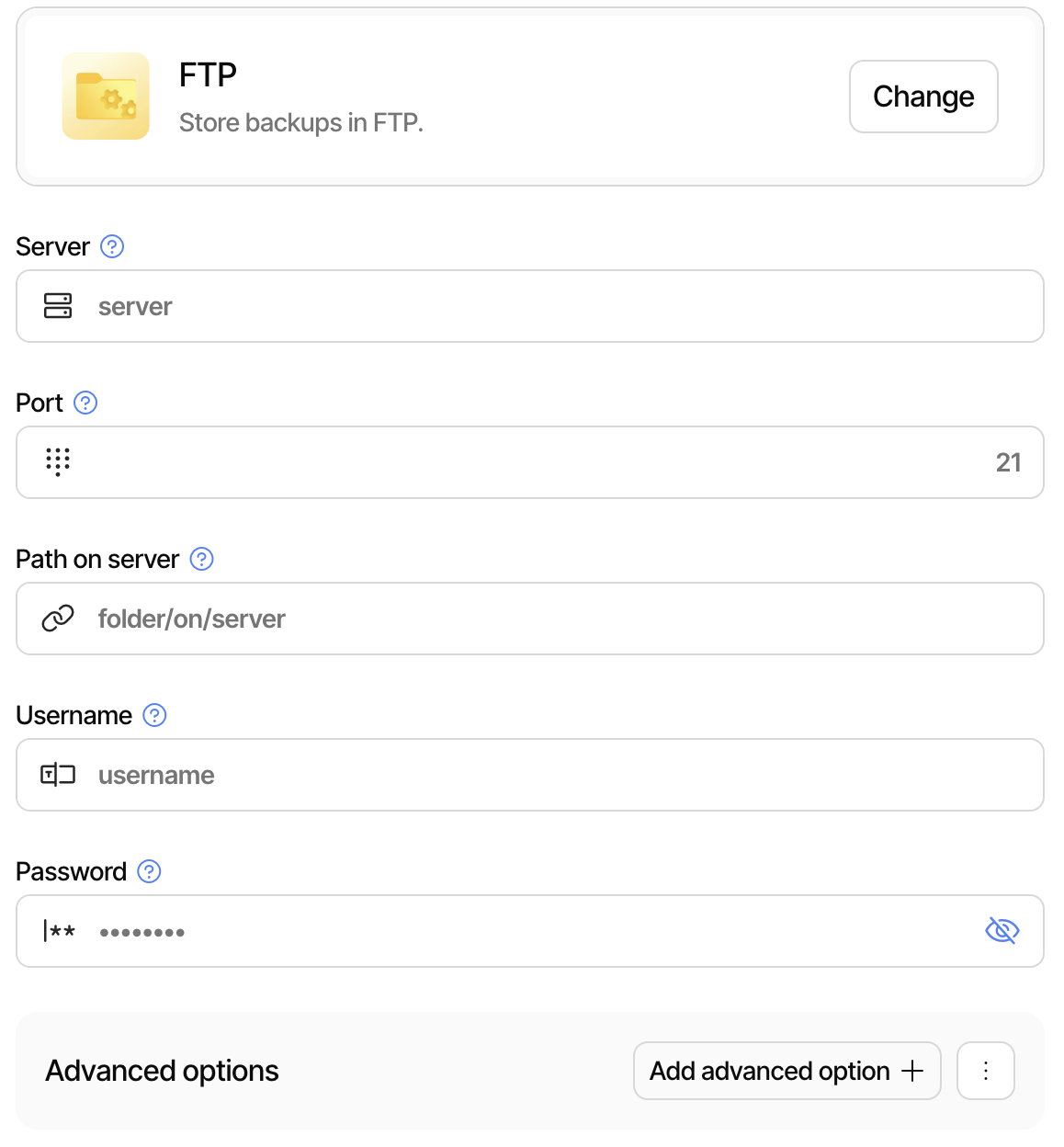
To use the FTP destination you must fill out at least the fields shown: server, port, path on server, username, and password. Based on your server, you may also need to add some advanced options as described below.
## URL format for Commandline
To use the FTP backend, you can use a URL such as:
```
ftp:///
?auth-username=
&auth-password=
```
Despite FTP being a well documented standard, there are many different implementations of the protocol, so the FTP backend supports a variety of settings for configuring the connection. You can use a non-standard port through the hostname, such as `ftp://hostname:2121` .
## Connection mode
Due to the way FTP is working, it requires multiple connections to transfer data, and the method for selecting which mode has a number of quirks. The default setting is "AutoPassive" which works great for most setups, leaving the burden of configuring the firewall to the server.
Use the option `--ftp-data-connection-type` to choose a specific connection mode if the default does not work for your setup.
## Encryption mode
To enable encrypted connections, you can use the option `--ftp-encryption-mode` and setting it to either `Implicit` or `Explicit`. The `Implicit` setting creates a TLS connection and everything is encrypted, where `Explicit` is more commonly used, and creates an unencrypted connection and then upgrades to an encrypted session.
The default setting is `--ftp-encryption-mode=None` which uses unencrypted FTP connections.
The setting `--ftp-encryption-mode=Auto` is the most compatible setting, but also insecure, as it connects in unencrypted mode and then attempts to switch to encrypted, but will continue in unencrypted mode if this fails.
To further lock down the encryption mode, the option `--ftp-ssl-protocols` can be used to limit the accepted protocols. **Note:** that due to unfortunate naming in .NET, the option `--ftp-ssl-protocols=None` means "use the system defaults".
### Self-signed certificates
To support self signed certificates, the FTP destination also supports the `--accept-specified-ssl-hash` option is also supported which takes an SHA1 certificate digest and approves the certificate if it matches that hash. This is similar to a manual certificate pinning and allows trusting a specific certificate outside the operating systems normal trust chain.
For testing, it is also possible to use `--accept-any-ssl-certificate` which will bypass certificate checks completely and enable man-in-the-middle attacks on the connection.
If the revocation status of the certificate cannot be checked, for instance because the revocation server is offline, the option `--ignore-revocation-failure` ignores that failure. This option is available from Duplicati 2.4.0.0.
## Path resolution
The FTP protcol is tied to a Posix-style path where `/` is the root folder and subfolders are described using the forward-slash separator. On some systems the filesystem is virtual, so the user can only see the root path, but has no knowledge of the underlying real filesystem. On others, the paths are mapped directly to the user home, like `/home/user`.
Use the option `--ftp-absolute-path` to treat the source path as an absolute path, meaning that `folder` maps to `/folder` and not to `/home/user/folder`.
A related option is the `--ftp-use-cwd-names` option that makes Duplicati keep track of the working directory and uses the FTP server's `CD` command to set the working folder prior to making a request.
## Verification of uploads
To verify that uploads actually work, the FTP connection will request the file after it has been uploaded to check that it exists and has the correct file size. This check is usually quite fast and does not impact backup speeds, but if needed it can be disabled with `--disable-upload-verify`.
A related setting `--ftp-upload-delay` adjusts the delay that is inserted after the upload but before verifying the file exists, which is required on some servers to ensure the file is fully flushed before validating the existence.
## Debugging commands
Because the FTP protocol can sometimes be difficult to diagnose, the option `--ftp-log-to-console` will enable logging various diagnostics output to the terminal. This option works best with the [BackendTool](/duplicati-programs/command-line-interface-cli-1/backendtool.md) or [BackendTester](/duplicati-programs/command-line-interface-cli-1/backendtester.md) application. The option `--ftp-log-privateinfo-to-console` will also enable logging of usernames and passwords being transmitted, to further track down issues. Neither option should be set outside of testing and evaluation scenarios.
The option `--ftp-log-diagnostics` writes the diagnostics messages from the FTP library to the regular Duplicati log instead of the terminal. Each message is logged with the matching log level (verbose, information, warning or error), so the verbose messages are only shown when the log level is set to verbose.
## PureFTPd servers
PureFTPd limits the number of files returned in a folder listing (10000 files with the default settings). If a listing is truncated, Duplicati stops with an error, because an incomplete listing can lead to wrong results for backups and restores.
When Duplicati detects a PureFTPd server, it logs a warning about this limit on each listing, and the connection test fails. If the server is configured with a higher limit, or you do not expect to store more than 10000 files in the folder, set `--ignore-pureftpd-limit-issue` to suppress the warning and the failing test. A truncated listing is still reported as an error.
## Notes on `aFTP`
Prior to Duplicati 2.1.0.2 there were two different FTP backends, FTP and Alternative FTP (aFTP). This was done as the primary FTP backend was based on [FtpWebRequest](https://learn.microsoft.com/en-us/dotnet/api/system.net.ftpwebrequest?view=net-9.0) and was lacking some features. The aFTP backend was introduced to maintain the FTP backend but offer more features using the FluentFTP library.
With Duplicati 2.1.0.2 the codebase was upgraded to .NET8 which means that `FtpWebRequest` is now deprecated. For that reason, the FTP backend was converted to also be based on FluentFTP, so both FTP backends are currently using the same library.
The `aFTP` backend is still available for backwards compatibility, but is the same as the FTP backend, with some different defaults. The `aFTP` backend will likely be marked deprecated in a future version, and eventually removed.
---
# Agent Instructions
This documentation is published with GitBook. GitBook is the documentation platform designed so that both humans and AI agents can read, navigate, and reason over technical content effectively. Learn more at gitbook.com.
## Querying This Documentation
If you need additional information that is not directly available in this page, you can query the documentation by asking a question.
Perform an HTTP GET request on the following URL with the `ask` and `goal` query parameters:
```
GET https://docs.duplicati.com/backup-destinations/standard-based-destinations/ftp-destination.md?ask=&goal=
```
`ask` is the immediate question: it should be specific, self-contained, and written in natural language.
`goal` is what the user is ultimately trying to achieve, the reason they need the answer. Sharing it helps GitBook give you a better, more relevant answer. A goal is most helpful when it describes the outcome the user wants rather than restating the question. For example, with `ask=how do I create an API token`, a goal like `automate deployments from our CI pipeline` lets GitBook tailor the answer to that use case.
The response will contain a direct answer to the question and relevant excerpts and sources from the documentation.
Use this mechanism when the answer is not explicitly present in the current page, you need clarification or additional context, or you want to retrieve related documentation sections.