> For the complete documentation index, see [llms.txt](https://docs.duplicati.com/llms.txt). Markdown versions of documentation pages are available by appending `.md` to page URLs; this page is available as [Markdown](https://docs.duplicati.com/duplicati-console/managed-microsoft-365-backup.md).
# Managed Microsoft 365 backup
This page describes how to set up a fully managed Microsoft 365 backup that runs in the Duplicati Console
A managed backup is a Microsoft 365 backup that is run for you by the Duplicati Console. There is no software to install and no machine to maintain: you provide the credentials for the Microsoft 365 tenant, and the console takes care of running the backup on a schedule, storing the data and reporting the results.
The managed backup uses the same backup engine as the self-hosted [Microsoft 365 backup and restore](/automation-and-integration/office-365-backup-and-restore.md), so the supported data types, data formats and limitations described on that page also apply here.
{% hint style="info" %}
Managed backups require **managed backup users** on your subscription. They are purchased separately from machine licenses and do not require an Enterprise plan. Trials do not include managed backup users.
{% endhint %}
{% hint style="warning" %}
Managed backups are not available for organizations that have **confidential processing** enabled.
{% endhint %}
## How it works
Each managed backup is executed by a **runner**, which is a Duplicati instance hosted by Duplicati. The runner is not running all the time. It is started on demand each time there is work to do, and stopped again when the work has completed:
1. When the backup is due, or when you click **Run now**, the console starts a runner for the backup.
2. The runner receives the backup configuration, connects to your Microsoft 365 tenant through the Microsoft Graph API and reads the data.
3. The data is deduplicated, compressed and encrypted, and then uploaded to the storage destination.
4. The runner reports the result to the console and is shut down.
Runners are also started on demand when you browse the tenant to set up filters, test the permissions or restore data. Starting a runner usually takes a minute or two.
Each managed backup shows up in the machine list as a machine named after the backup, followed by "Runner". This machine does not use a machine license, and is where the backup reports and activity for the managed backup are collected, so the existing dashboards, reports and alerts work for managed backups as well.
The backup data is encrypted with a passphrase that is generated automatically when the backup is created. The encryption settings cannot be changed afterwards.
## Managed backup users and storage
Managed backups are licensed per **managed backup user**, also referred to as a seat. Seats are purchased on the subscription page under **Settings → Subscription**, and the same seats can be used for both Microsoft 365 and Google Workspace backups.
{% hint style="info" %}
Managed backup users are sold on yearly subscriptions. If you are on a monthly subscription, contact Duplicati support to add managed backup users.
{% endhint %}
### Storage
Each purchased managed backup user adds **100 GB** of Duplicati cloud storage to the account. The storage is pooled for the organization, so it does not matter how the data is distributed between the users in the tenant. As an example, 25 managed backup users give 2.5 TB of storage that is shared by all backups in the organization.
If the storage quota is exceeded, the console raises a **Storage quota exceeded** alert, and new backups may fail until the usage is brought below the quota again or more storage is added.
### How seats are counted
When you create a managed backup, you assign a number of your managed backup users to it. A backup with a given number of seats can back up that many users, that many groups and that many sites. The number of seats a backup uses is therefore the largest of the three counts, not the sum.
For Microsoft 365, the following counts towards the seats:
| Type | Counted | Not counted |
| ------ | -------------------------------------------------- | ----------------------------------------------------------- |
| Users | Licensed users, shared mailboxes with storage | Unlicensed users, shared mailboxes without storage |
| Groups | Microsoft 365 (unified) groups | Other group types, such as security and distribution groups |
| Sites | SharePoint sites, OneDrive sites of licensed users | OneDrive (personal) sites of unlicensed users |
After each backup, the console shows how many seats the latest backup used, broken down into users, groups and sites.
{% hint style="warning" %}
If the tenant contains more users, groups or sites than there are seats assigned to the backup, the items beyond the limit are **not backed up** and the backup log contains a warning. Make sure to assign enough seats, or use filters to leave out the parts of the tenant that you do not want to back up. Restores are not limited by seats.
{% endhint %}
## Prepare the Microsoft 365 tenant
The managed backup accesses the tenant as an application, using a client ID and a client secret. Before creating the backup, a tenant administrator needs to register an application in Microsoft Entra ID, grant it the required Microsoft Graph application permissions, and create a client secret. The steps are described in [Microsoft 365 credentials setup](/automation-and-integration/microsoft-365-credentials-setup.md).
When done, you have the **Directory (tenant) ID**, the **Application (client) ID** and the **client secret value** needed to create the backup.
{% hint style="info" %}
The backup only needs read permissions, while a restore needs write permissions. For better security, you can grant only the read permissions to the application used for the backup, and supply a different set of credentials with write permissions when you need to restore.
{% endhint %}
{% hint style="warning" %}
Client secrets expire. Make a note of the expiry date and update the backup with a new secret before the old one expires, as the backups fail when the secret is no longer valid.
{% endhint %}
## Create a managed backup
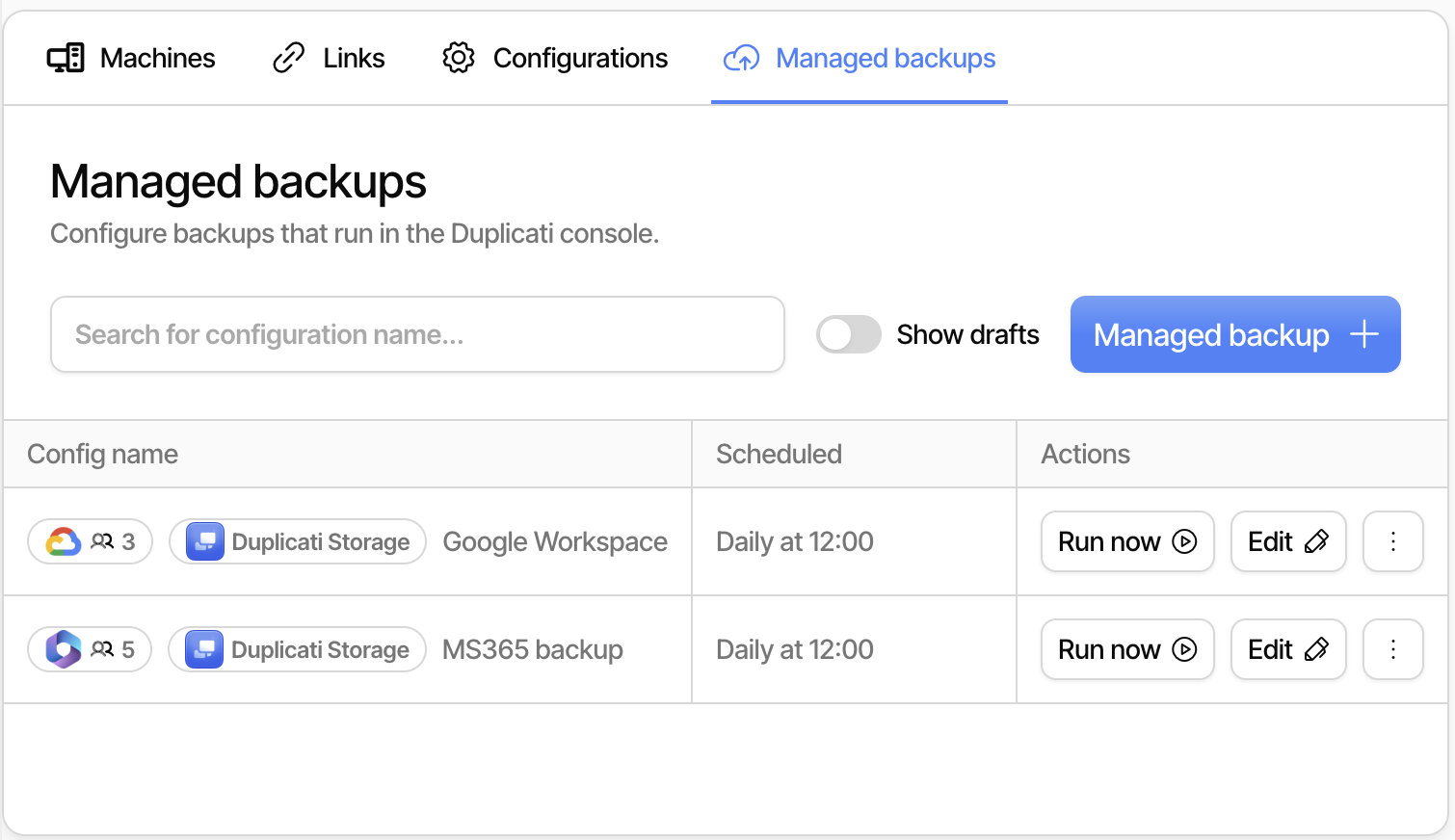
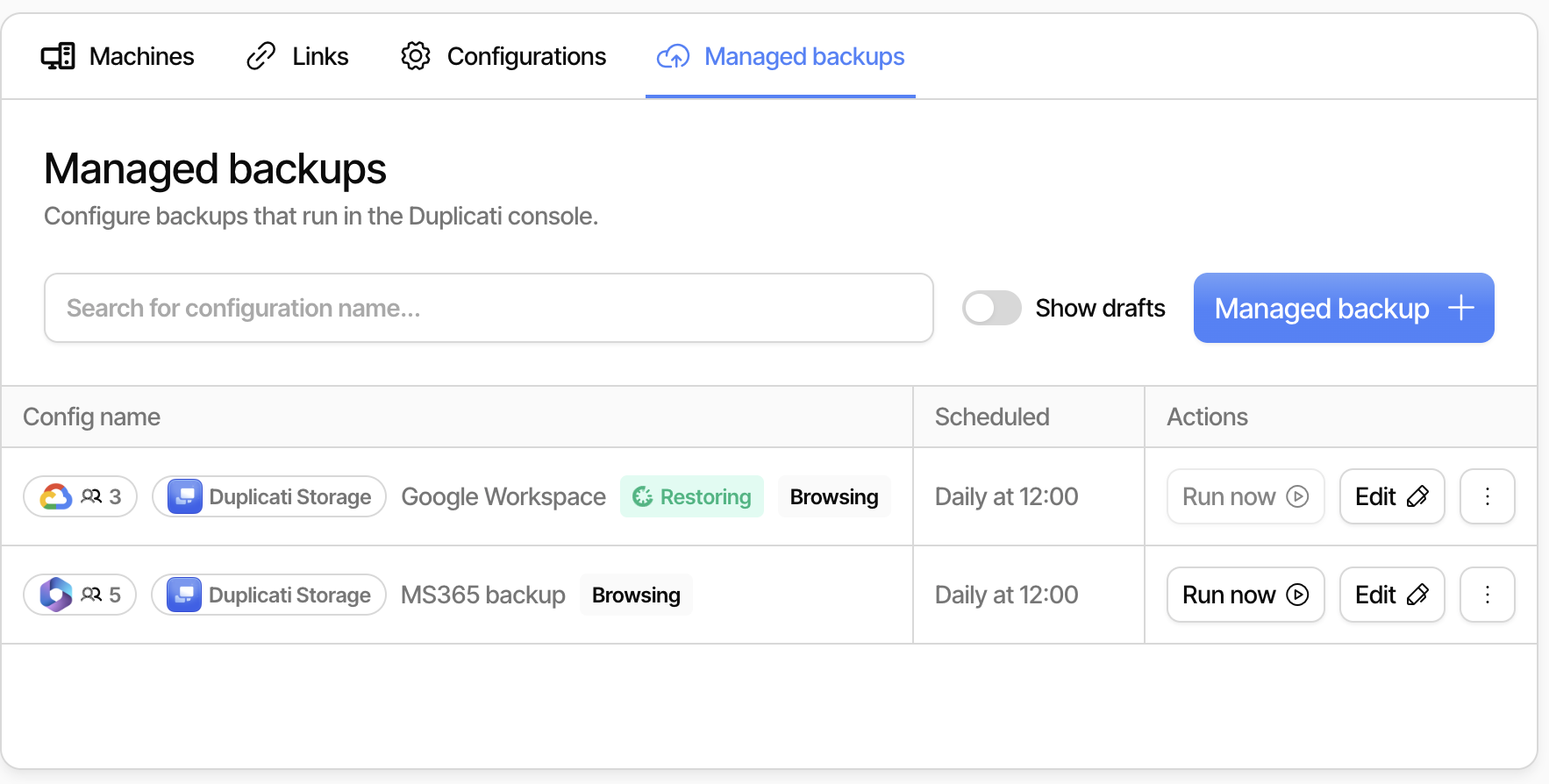
In the Duplicati Console, go to **Machines** and choose the **Managed backups** tab. Click the **Managed backup** button to start the wizard.
### General
On the first page, fill in the general settings:
* **Backup name**: A name for the backup, such as the name of the tenant.
* **Managed backup users**: The number of seats to assign to this backup. The field shows how many seats are available.
* **Run the backup**: How often the backup runs. The options are **Daily**, **Every 2 days**, **Weekly** and **Monthly**.
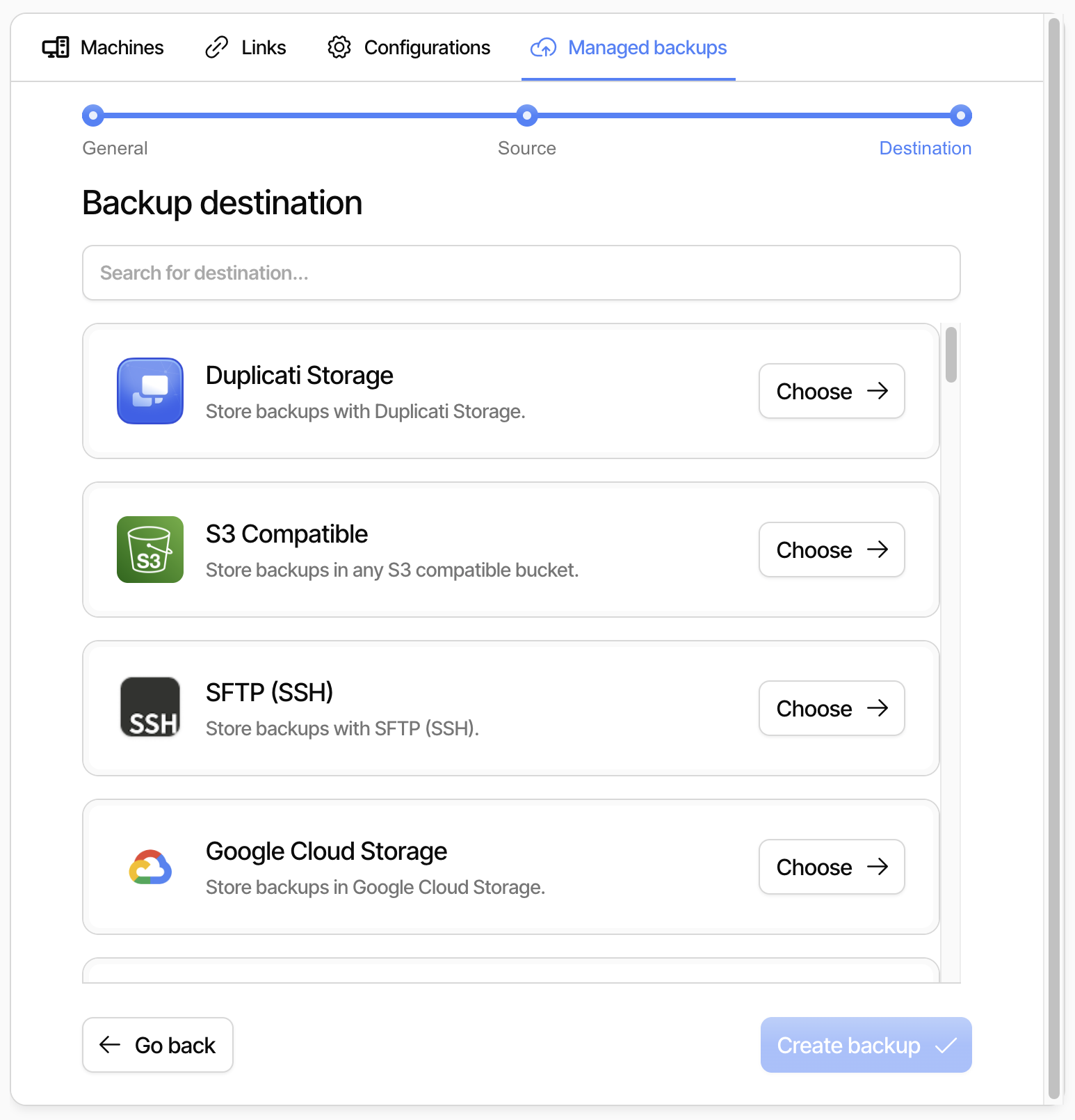
* **Use own storage**: Leave this unchecked to use the Duplicati cloud storage. See [Using your own storage](#using-your-own-storage) if you prefer to store the backups elsewhere.
Scheduled backups are started around noon in your local time zone. It can take up to an hour from the scheduled time until the backup starts.
### Source
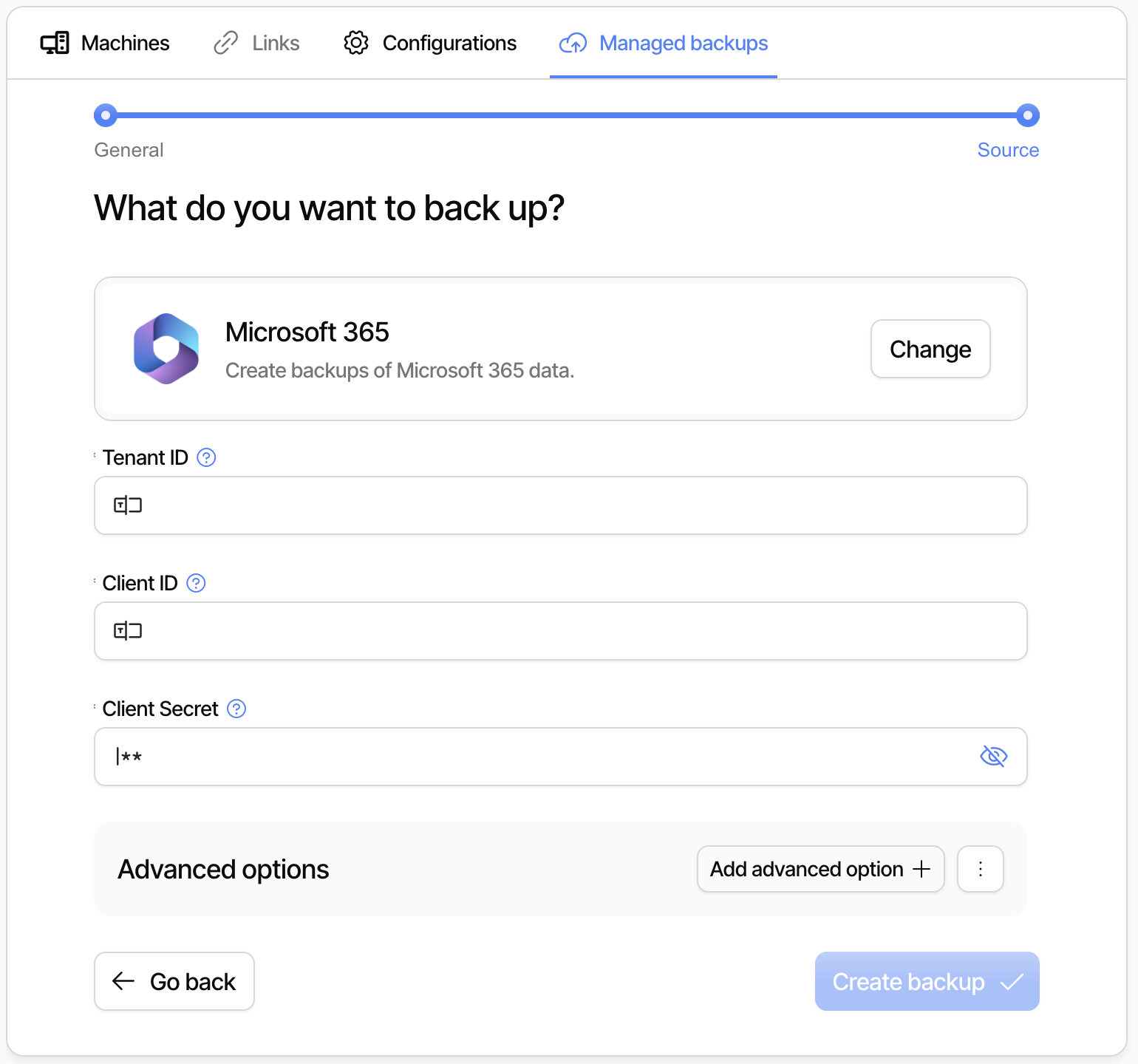
On the source page, choose **Microsoft 365** and enter the credentials from the application registration:
* **Tenant ID**: The Directory (tenant) ID.
* **Client ID**: The Application (client) ID.
* **Client Secret**: The value of the client secret.
The advanced options on the source can be used to control which types of data are included. Some types, such as To-Do tasks and OneNote notebooks, are [excluded by default](/automation-and-integration/office-365-backup-and-restore.md#types-excluded-by-default) and can be enabled here. The options are described in [Microsoft 365 configuration options](/automation-and-integration/office-365-backup-and-restore.md#microsoft-365-configuration-options).
Click **Create backup** to save the backup. It now runs according to the schedule, and you can click **Run now** in the list to start the first backup right away.
{% hint style="info" %}
The source type cannot be changed after the backup is created. To back up a Google Workspace domain, create a separate [managed Google Workspace backup](/duplicati-console/managed-google-workspace-backup.md).
{% endhint %}
## Test permissions and leave out data
By default, everything in the tenant is backed up. After the backup has been created, click **Edit** on the backup to get access to the **Filters** page. The console starts a runner that connects to the tenant, and shows the contents of the tenant as a tree.
From this page you can:
* **Leave out items**: Click an item in the tree, such as a user or a site, to leave it out of the backup. Click it again to include it. The resulting rules are shown under **Filter rules**, where you can also add rules manually.
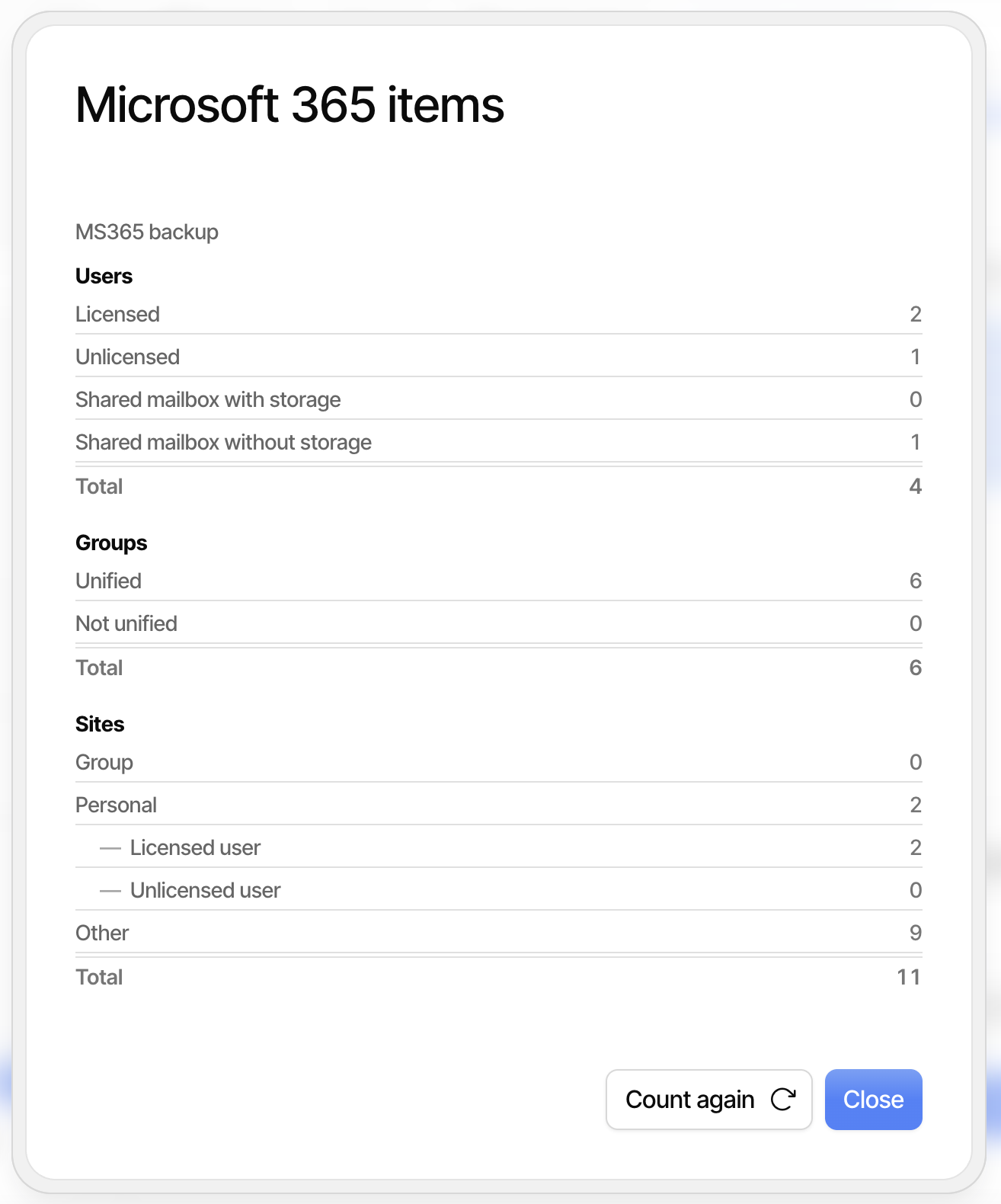
* **Count items**: Shows the number of users, groups and sites in the tenant, split into the categories used for counting seats. This is useful for deciding how many seats to assign to the backup.
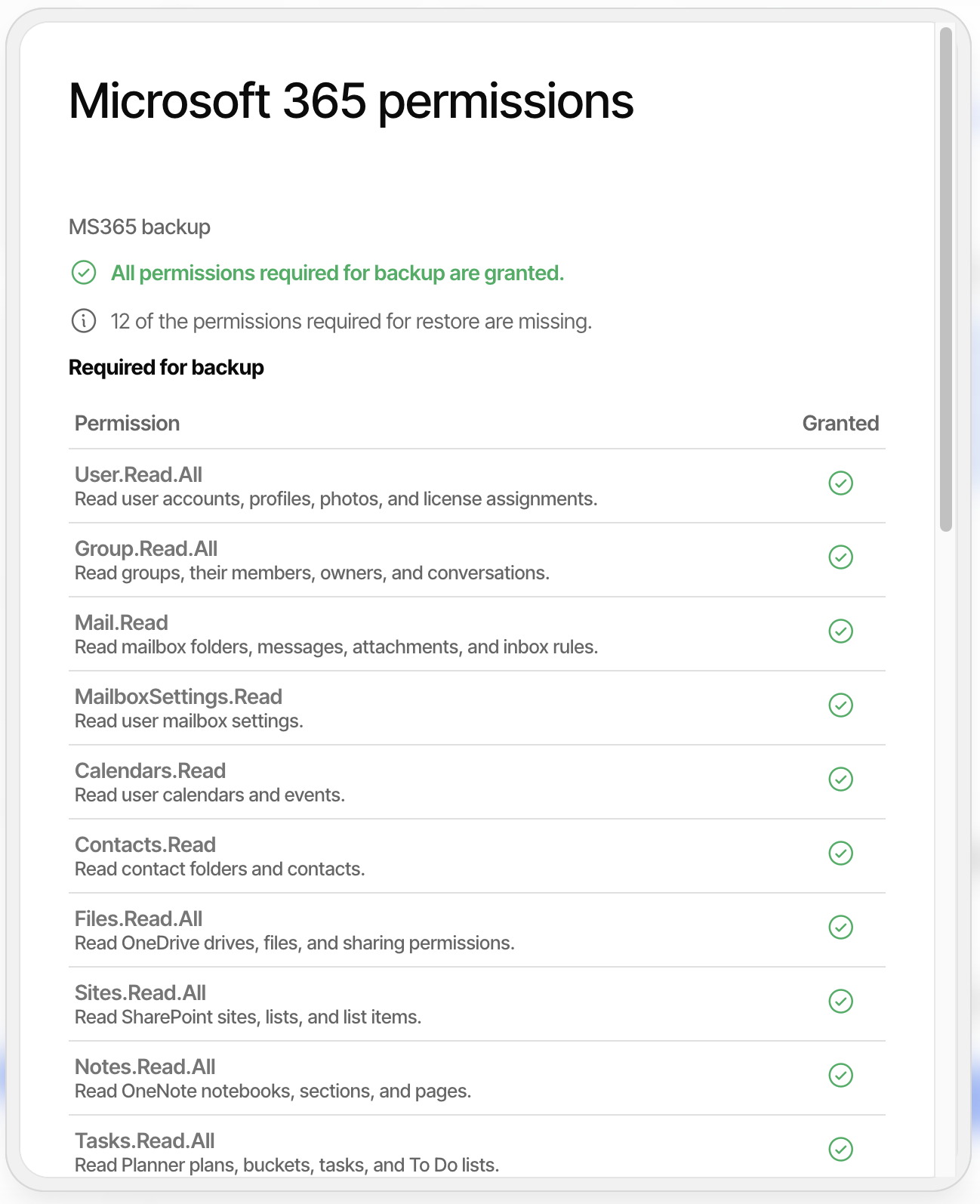
* **Test permissions**: Shows which of the permissions required for backup and restore are granted to the application, and which are missing.
## Using your own storage
By default, managed backups are stored in the Duplicati cloud storage, which requires no configuration. If you prefer to keep the backup data in your own storage, check **Use own storage** on the first page of the wizard. This adds a **Destination** page to the wizard where you choose and configure the storage destination.
All the [backup destinations supported by Duplicati](/backup-destinations/destination-overview.md) can be used, with the exception of the local file destination, as the runner has no persistent local storage. The destination must be reachable from the internet for the runner to connect to it.
## Monitoring and maintenance
The list of managed backups shows the schedule for each backup and the current state, such as **Backing up** or **Restoring**, while a runner is active. Only one operation can run at a time for each backup.
The results of each backup are reported to the console in the same way as for regular machines, and can be found in the backup reports for the runner machine. See [Using the Duplicati Console](/duplicati-console/using-the-duplicati-console.md) for details on reports and alerts.
The actions menu on each backup contains the following operations:
| Action | Description |
| ------------------ | -------------------------------------------------------------------------------------------------- |
| Restore | Restores data from the backup, see below |
| Repair | Repairs inconsistencies between the local database and the storage destination |
| Purge broken files | Removes files from the backup that can no longer be restored due to missing data. Cannot be undone |
| Recreate database | Rebuilds the local database from the storage destination. No backups run until it has finished |
| Delete database | Deletes the local database. Backups fail until the database is recreated |
| Archive | Removes the managed backup and releases the seats assigned to it |
{% hint style="info" %}
Running a backup manually, restoring and the maintenance operations require that you are an owner of the organization.
{% endhint %}
## Restore
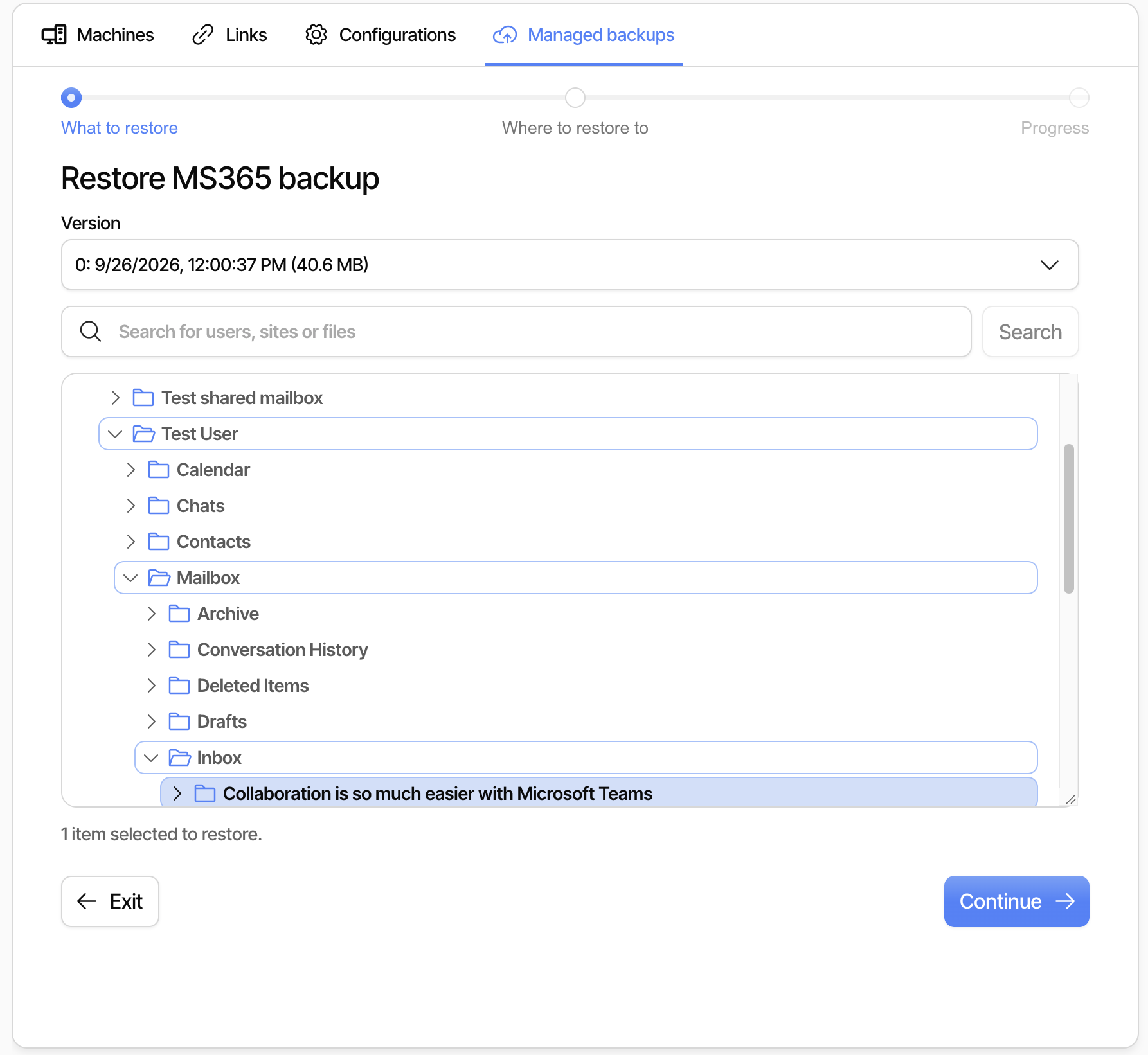
To restore data, open the actions menu for the backup in the list of managed backups and choose **Restore**. The restore runs in three steps.
### What to restore
The console starts a runner to browse the backup. Choose the **version** of the backup to restore from, and then select the items to restore in the tree. You can select anything from a full user down to a single folder or item, and you can search for users, sites or files by name.
### Where to restore to
Next, choose the credentials for the restore and the location to restore into:
* **Use the backup's credentials**: Restores into the same tenant that was backed up. If the application was only granted read permissions, the restore fails, so use **Test permissions** to check before starting.
* **Use other credentials**: Enter a tenant ID, client ID and client secret to use for the restore. This can be an application with write permissions in the same tenant, or an application in a **different tenant** for a cross-tenant restore.
Then select the target under **Restore into**, such as a user, a mailbox folder, a group or a site. The data does not need to go back to where it came from, so data from one user can be restored into another user.
By default, the restore checks if each item already exists in the target to avoid creating duplicates. The check can be skipped to make the restore faster, but items that already exist are then restored again.
When email is restored into a user or a mailbox, the messages are placed in a folder named **Restored**. If a specific mailbox folder is chosen as the target, the messages are restored into that folder.
See [Cross-tenant restore](/automation-and-integration/office-365-backup-and-restore.md#cross-tenant-restore) and [Backup and restore details by type](/automation-and-integration/office-365-backup-and-restore.md#backup-and-restore-details-by-type) for details on how each type of data is restored.
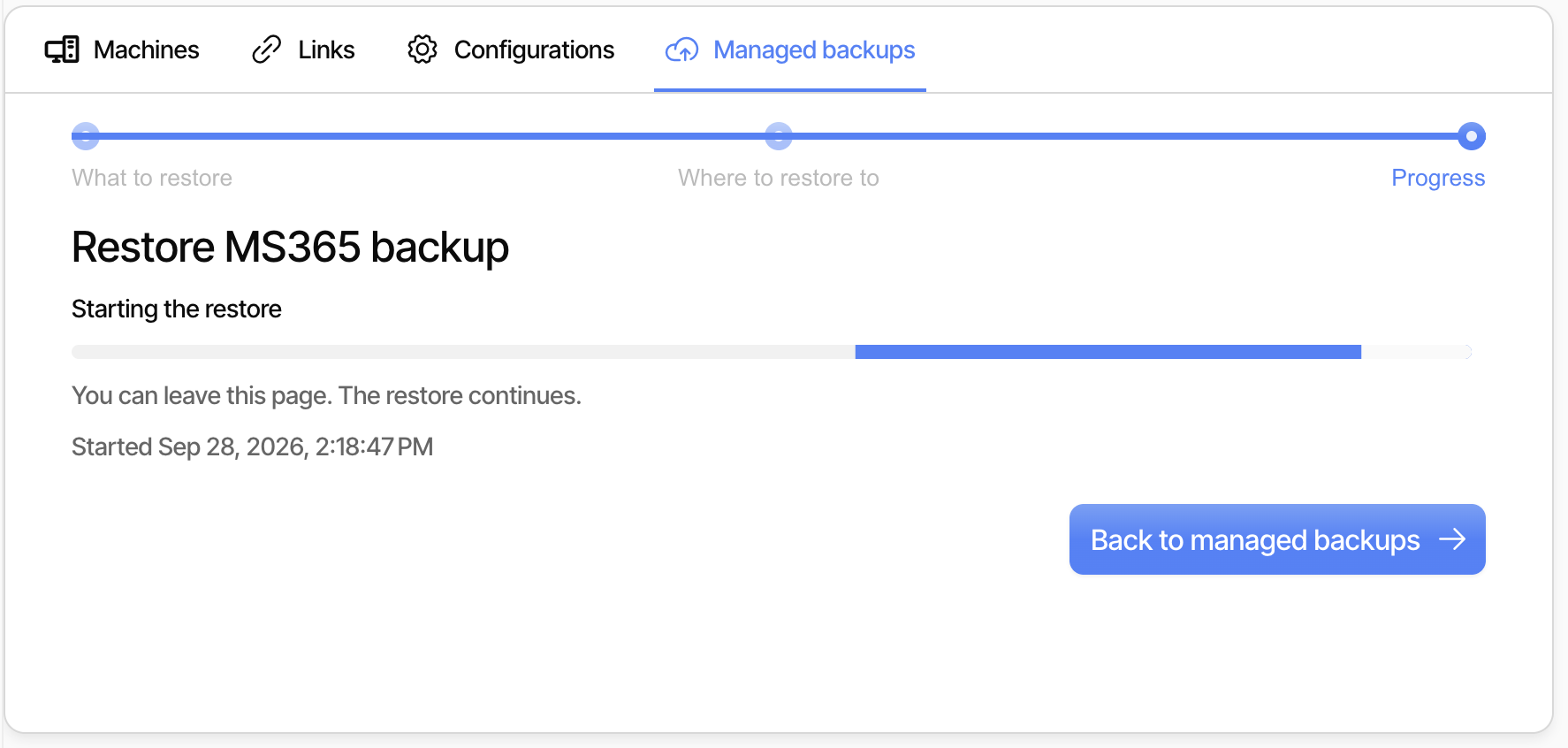
### Progress
Click **Start restore** to begin. The console starts a runner for the restore and shows the progress. You can leave the page while the restore is running, the restore continues in the background.
---
# Agent Instructions
This documentation is published with GitBook. GitBook is the documentation platform designed so that both humans and AI agents can read, navigate, and reason over technical content effectively. Learn more at gitbook.com.
## Querying This Documentation
If you need additional information that is not directly available in this page, you can query the documentation by asking a question.
Perform an HTTP GET request on the following URL with the `ask` and `goal` query parameters:
```
GET https://docs.duplicati.com/duplicati-console/managed-microsoft-365-backup.md?ask=&goal=
```
`ask` is the immediate question: it should be specific, self-contained, and written in natural language.
`goal` is what the user is ultimately trying to achieve, the reason they need the answer. Sharing it helps GitBook give you a better, more relevant answer. A goal is most helpful when it describes the outcome the user wants rather than restating the question. For example, with `ask=how do I create an API token`, a goal like `automate deployments from our CI pipeline` lets GitBook tailor the answer to that use case.
The response will contain a direct answer to the question and relevant excerpts and sources from the documentation.
Use this mechanism when the answer is not explicitly present in the current page, you need clarification or additional context, or you want to retrieve related documentation sections.