> For the complete documentation index, see [llms.txt](https://docs.duplicati.com/llms.txt). Markdown versions of documentation pages are available by appending `.md` to page URLs; this page is available as [Markdown](https://docs.duplicati.com/duplicati-console/duplicati-storage.md).
# Duplicati Storage
This page describes how to use Duplicati Storage as the backup destination, and how to obtain a restore connection string to restore on another machine
Duplicati Storage is the storage service that is integrated with the Duplicati Console. It works as a backup destination that requires no configuration: there are no buckets, folders or credentials to set up, as the console provides the machine with everything that is needed to store the backups.
The storage is managed from the Duplicati Console, where you can see how much data each machine and backup uses, choose the region where the data is stored, remove data that is no longer needed, and issue a **restore connection string** that makes it possible to restore the data on another machine.
{% hint style="info" %}
Backups stored in Duplicati Storage are encrypted on the machine before they are uploaded, in the same way as with any other destination. The encryption passphrase is never sent to Duplicati Storage, so make sure to keep a copy of the passphrase in a safe place. Without the passphrase, the data cannot be restored.
{% endhint %}
## Requirements and storage quota
Duplicati Storage requires a **Pro** or **Enterprise** subscription, or an active trial. The machine that makes the backups must be [connected to the Duplicati Console](/duplicati-console/connecting-to-the-duplicati-console.md) and have a license in the organization.
The storage quota is pooled for the organization, so it does not matter how the data is distributed between the machines. The quota is calculated from the subscription:
| Item | Storage included |
| ---------------------------- | ---------------- |
| Each licensed machine | 100 GB |
| Each additional storage unit | 100 GB |
| Each managed backup user | 100 GB |
| Trial | 100 GB in total |
As an example, a subscription with 5 machines and 3 additional storage units has a quota of 800 GB that is shared by all machines in the organization.
Additional storage is purchased in units of 100 GB on the subscription page under **Settings → Subscription**.
{% hint style="warning" %}
When the subscription or trial expires, access to Duplicati Storage stops working, and the stored backups are eventually removed. Make sure to renew the subscription, or move the backups to another destination, before the subscription expires.
{% endhint %}
## Storage API keys
Each machine accesses Duplicati Storage with a **storage API key** that is issued by the console and sent to the machine over the console connection. The key is never entered manually, and is not stored as part of the backup configuration.
A storage API key is issued automatically when a machine is added to the organization, as long as the **Issue Storage API Key** option is checked. The option is on by default, and is found in the dialog for claiming a machine, in the list of registered machines and on registration links.
For machines that do not have a key, or if the key needs to be replaced, use the actions menu for the machine on the **Machines** page:
| Action | Description |
| ---------------------- | --------------------------------------------------------------------------------- |
| Issue Storage API Key | Issues a key for a machine that does not have one |
| Rotate Storage API Key | Replaces the key with a new one, and revokes the previous keys for the machine |
| Revoke Storage API Key | Revokes the keys for the machine, after which it can no longer access the storage |
A storage API key only gives access to the data stored by the machine it was issued for. A machine cannot read or change the backups that belong to other machines in the organization.
## Set up a backup with Duplicati Storage
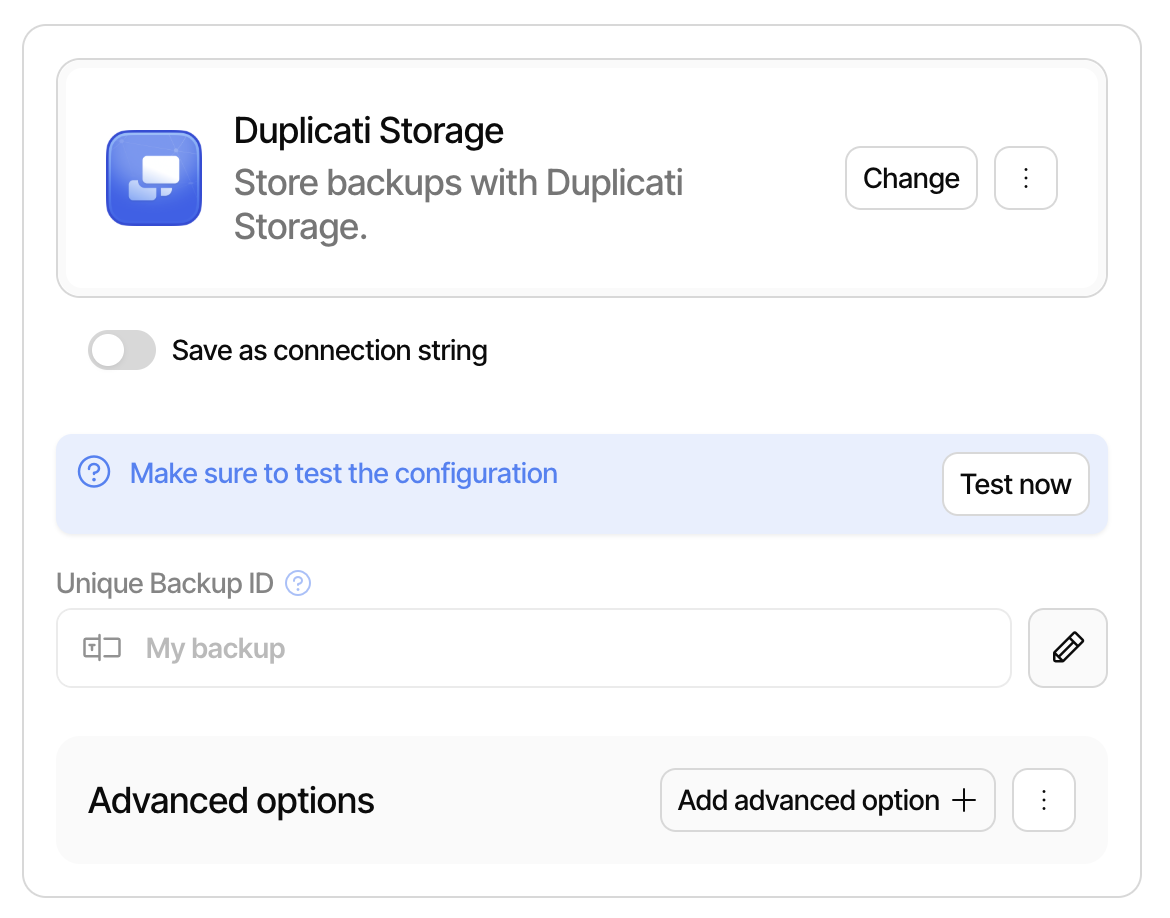
To use Duplicati Storage, create or edit a backup on the machine and choose **Duplicati Storage** on the destination page.
The only setting is the **Unique Backup ID**, which identifies the backup among the backups stored by the machine. It is filled in with the name of the backup, and is locked to prevent changing it by accident. Click the pencil button if you need to change it.
{% hint style="warning" %}
Each backup on a machine must have its own backup ID. It is recommended not to change the backup ID after the first backup has been made, as the backup will then no longer find the data that is already stored.
{% endhint %}
If the machine is not ready to use Duplicati Storage, the destination page shows a message instead of the backup ID:
* **Connect to the console to use Duplicati storage**: The machine is not connected to the console. Click **Connect now** to connect it.
* **An API key with storage access is required to use Duplicati storage**: The machine is connected, but does not have a storage API key. Click **Visit console** and issue a key for the machine as described above.
The rest of the backup is configured in the same way as any other backup, see [Set up a backup in the UI](/getting-started/set-up-a-backup-in-the-ui.md).
## Manage the storage
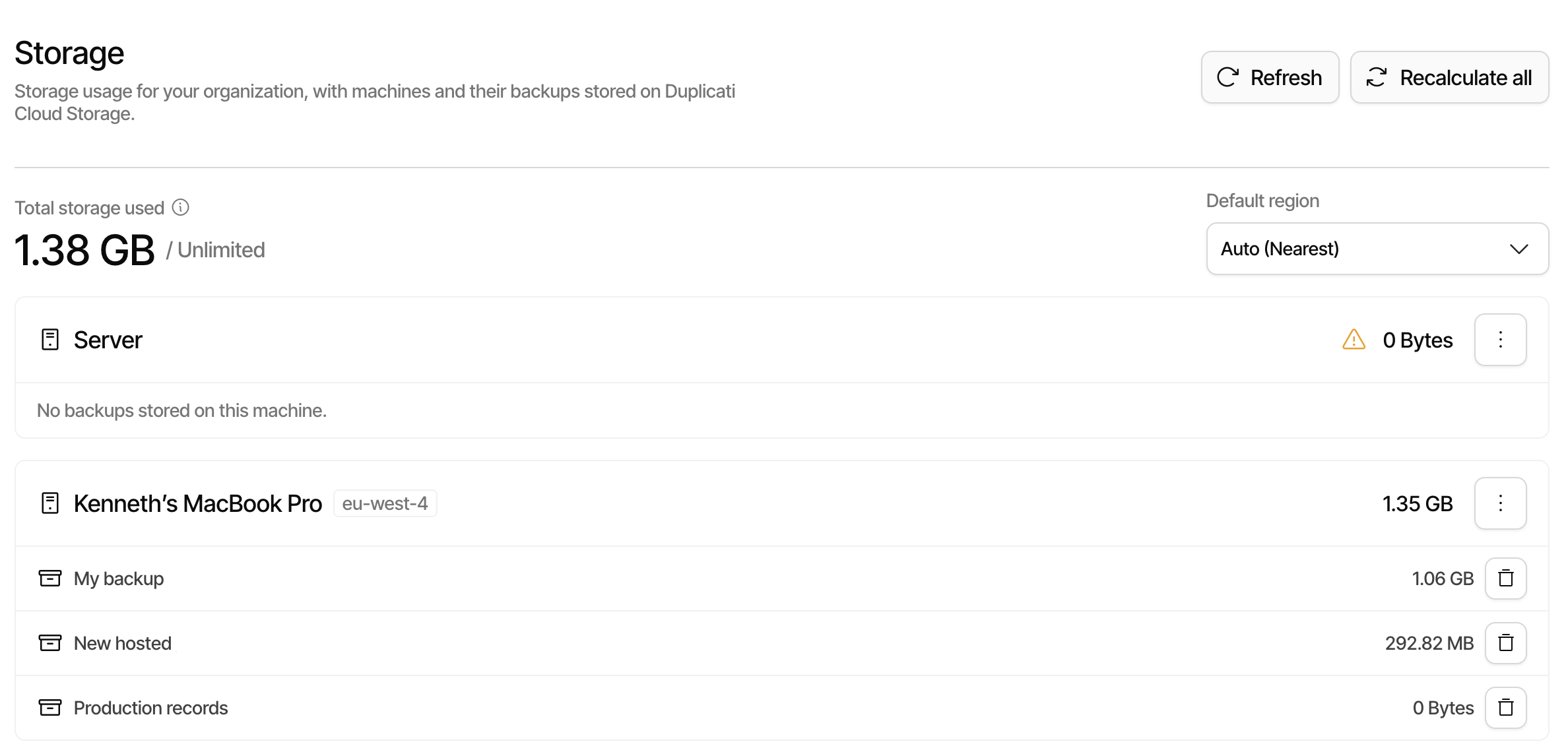
In the Duplicati Console, go to **Settings → Storage** to see the storage used by the organization. The page is available when the organization has an active subscription.
The top of the page shows the **Total storage used** together with the quota for the organization. Below this, each machine that uses Duplicati Storage is listed with the region where the data is stored, the storage used by the machine, and the backups that the machine has stored.
{% hint style="info" %}
The storage usage is not updated immediately, and the total can be up to 2 hours delayed. If the usage for a machine has not been counted for more than a week, a warning is shown next to the usage.
{% endhint %}
Use **Recalculate all** to start a recount of the storage for all machines, or **Recalculate storage** in the actions menu for a machine to recount a single machine. A recount can take up to an hour to complete.
### Exceeding the quota
If more data is stored than the quota allows, the page shows **Storage is over quota**, and the console raises a **Storage quota exceeded** alert. New backups may fail until the usage is brought below the quota again, either by removing data or by clicking **Purchase more storage**.
Restoring is still possible when the quota is exceeded.
### Storage region
The **Default region** is used to choose where the data is stored for machines that start using Duplicati Storage. With **Auto (Nearest)**, the region closest to the machine is chosen when the machine makes the first backup.
Changing the default region only applies to machines that have not stored any data yet. The data for machines that are already using Duplicati Storage stays in the region shown for the machine.
See [Duplicati Storage configuration](/duplicati-console/duplicati-storage/duplicati-storage-configuration.md) for more details on the region, and for how to configure object locking.
### Delete stored backups
Data can be removed for a single backup, or for a machine with all the backups that belong to it:
* To delete a single backup, click the trash button next to the backup. To confirm, type `delete backup storage` in the dialog.
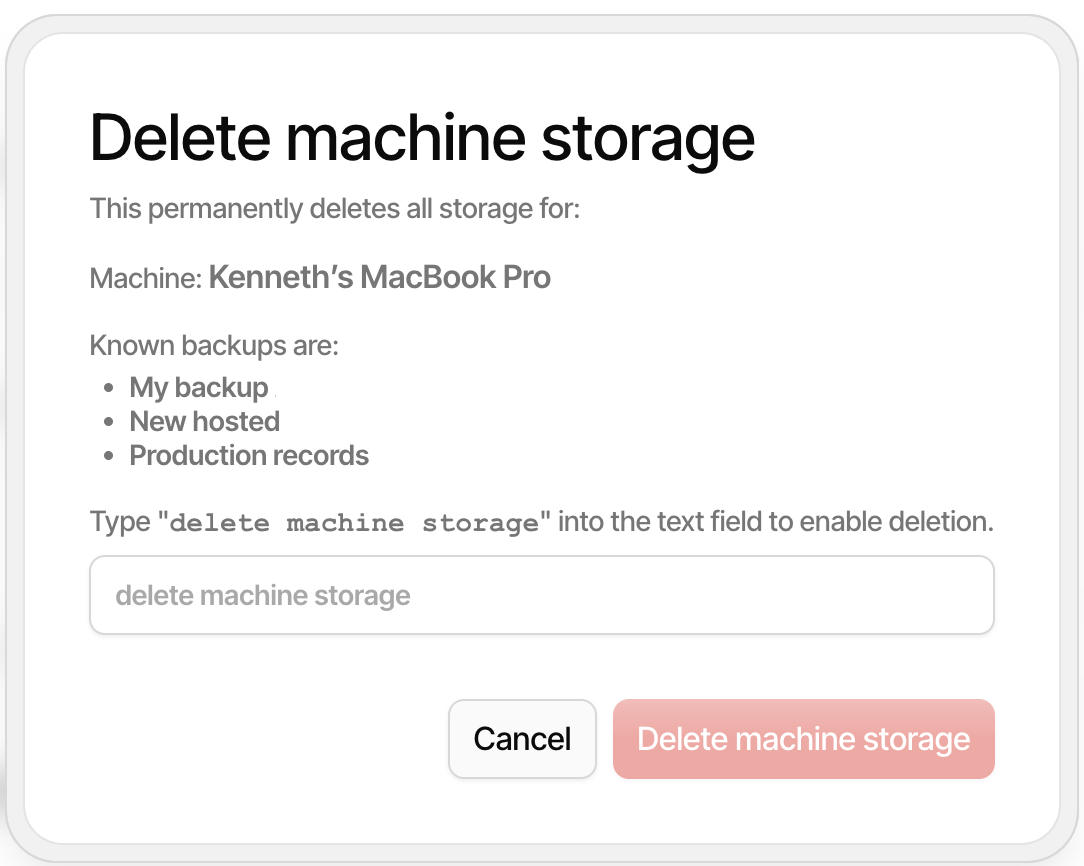
* To delete everything stored by a machine, choose **Delete storage** in the actions menu for the machine. The dialog shows the backups that will be removed. To confirm, type `delete machine storage` in the dialog.
{% hint style="danger" %}
Deleting the storage is **permanent** and cannot be undone. The delete runs in the background, and it can take up to an hour before the data is removed.
{% endhint %}
Deleting the storage does not change the backup configuration on the machine. If the backup is still active on the machine, the next run will fail, so remember to also remove or update the backup on the machine.
## Restore on the same machine
As long as the machine that made the backup is working, restoring is done as with any other destination. Choose **Restore** on the machine, pick the backup and select the files to restore, as described in [Restoring files](/getting-started/restoring-files.md).
## Restore with a restore connection string
If the machine that made the backup is lost, or you need to restore the data somewhere else, the storage API key that was used by the machine is not available. For this case, the console can issue a **temporary read-only key** for the machine. The key is delivered as a restore connection string, shown as the **Destination URL**, which can be pasted into any Duplicati installation to restore the data.
The restore connection string has the following properties:
* It gives access to **all backups stored by one machine**, and not to the data from other machines.
* It is **read-only**, so it can be used to restore, but not to change or delete the stored backups.
* It **expires after 7 days**, and can be revoked before that.
* It does **not** contain the encryption passphrase for the backup. The passphrase must be entered on the machine that restores.
* The machine that restores does **not** need to be connected to the console.
{% hint style="info" %}
Issuing a restore connection string requires that you are an **owner** of the organization, and that the machine has a license in the organization.
{% endhint %}
### Obtain the restore connection string
1. In the Duplicati Console, go to **Settings → Storage**.
2. Find the machine that made the backup you want to restore from.
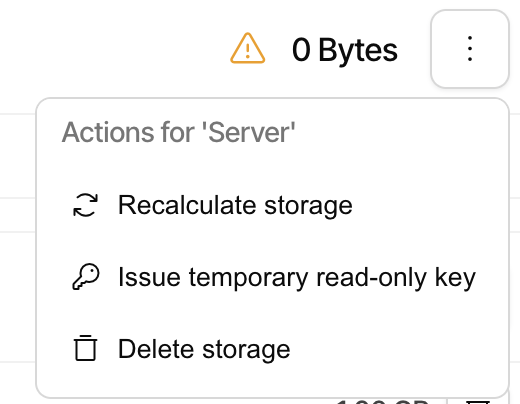
3. Open the actions menu for the machine and choose **Issue temporary read-only key**.
The key is issued right away, and the dialog shows the restore connection string in the **Destination URL** field, together with the machine it is for and the time it expires. Click the field, or the copy button, to copy it to the clipboard.
{% hint style="warning" %}
The restore connection string is **only shown once**. Copy it before closing the dialog, as it cannot be retrieved later. If it is lost, revoke the key and issue a new one.
{% endhint %}
The restore connection string has the following format:
```
duplicati://?duplicati-auth-apikey=&duplicati-auth-apiid=&duplicati-endpoint=
```
Anyone who has the restore connection string can download the backup data for the machine until the key expires. The data is still protected by the encryption passphrase, but treat the restore connection string as a password, and only send it over a secure channel.
When a key is issued, the owners of the organization are notified in the console and by email. If you receive a notification for a key that you did not expect, revoke the key as described below.
### Restore from the Duplicati client
The restore can be done from any machine with Duplicati installed. See [Installation](/getting-started/installation.md) if Duplicati is not yet installed on the machine.
1. Open the Duplicati user interface and choose **Restore**.
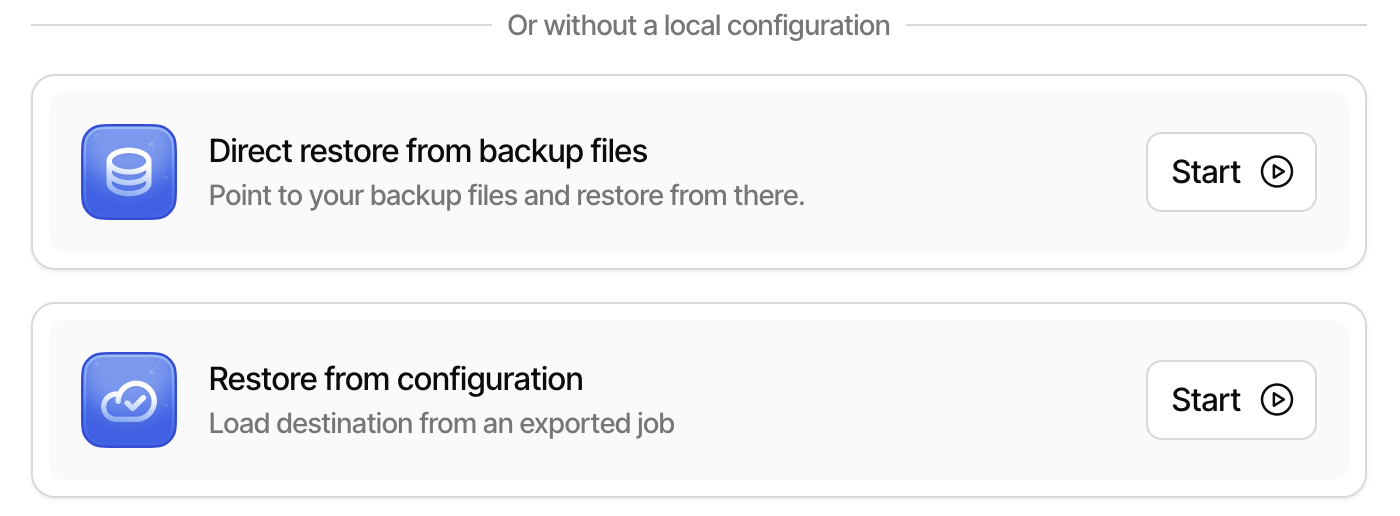
2. Choose **Direct restore from backup files** and click **Start**.
3. On the **Backup destination** page, click **Set target URL**.
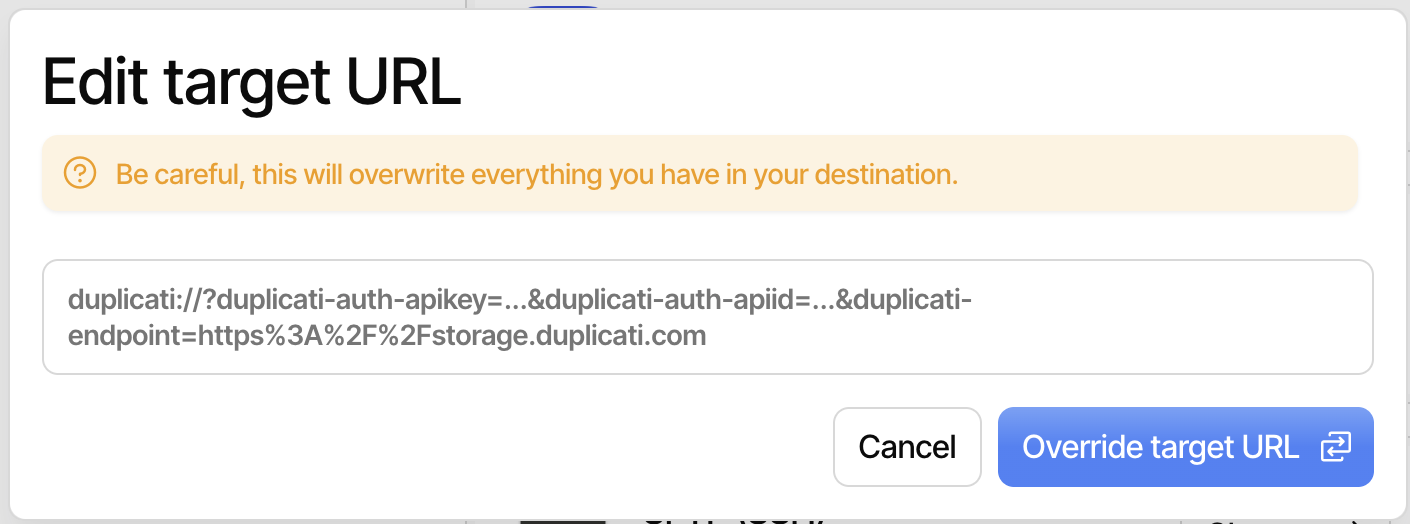
4. Paste the restore connection string into the dialog, and click **Override target URL**.
{% hint style="info" %}
The dialog warns that the URL will overwrite everything in the destination. This refers to the destination settings on the page, and not to the stored backup data, which cannot be changed with the read-only key.
{% endhint %}
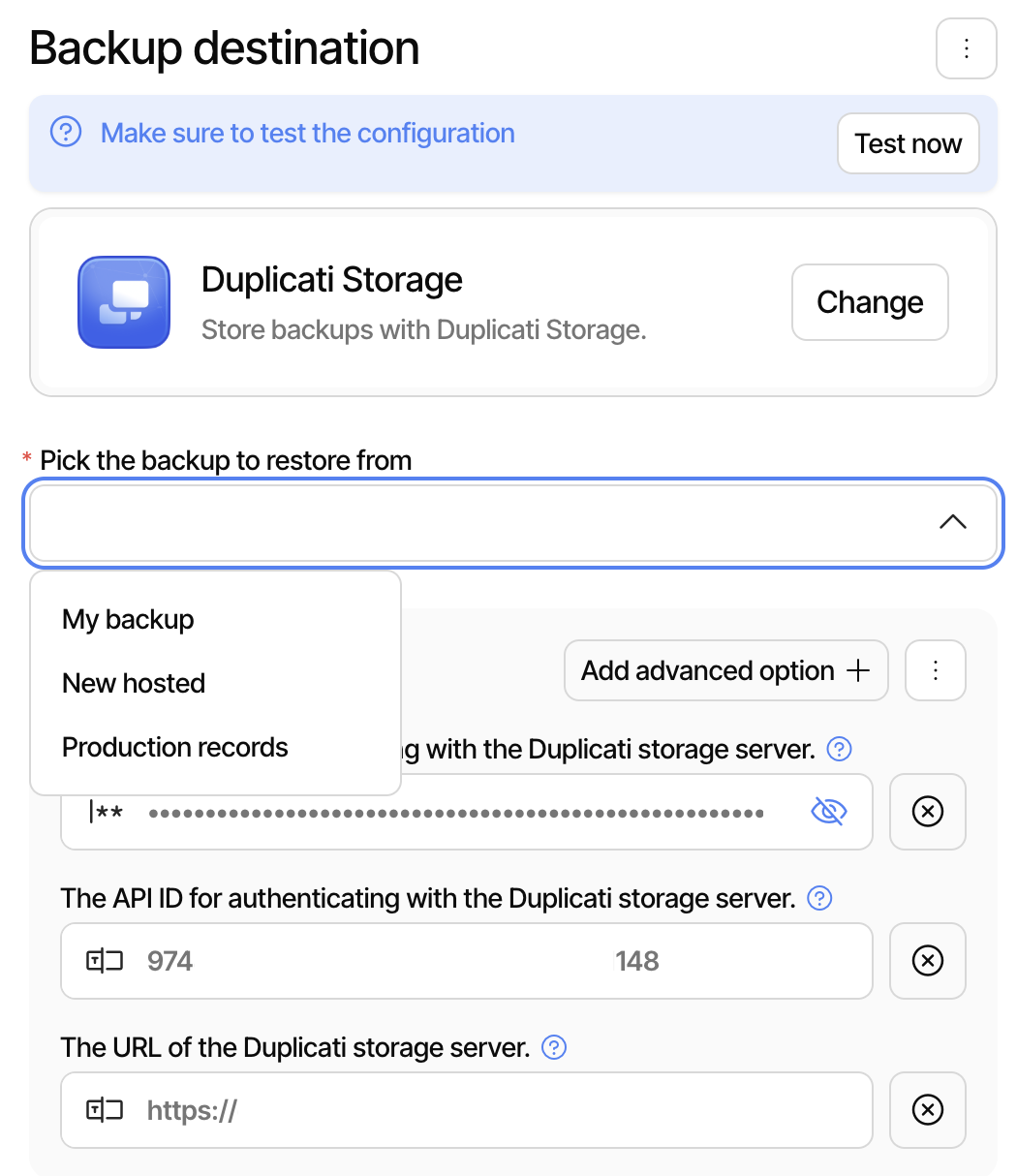
5. The destination page now shows Duplicati Storage and loads the backups stored by the machine. Choose the backup in the **Pick the backup to restore from** list, and click **Continue**.
6. On the **Encryption** page, enter the passphrase that was used for the backup.
7. Select the files to restore, choose where to restore them to, and start the restore. These steps are the same as for any other restore, and are described in [Restoring files](/getting-started/restoring-files.md).
If the machine had multiple backups, repeat the steps for each backup. The same restore connection string can be used for all of them until it expires.
### Restore from the command line
The restore connection string can also be used with the [command line interface](/duplicati-programs/command-line-interface-cli.md). The command line needs to know which backup to restore from, so the backup ID must be added to the restore connection string with the `duplicati-backup-id` option:
```
duplicati://?duplicati-auth-apikey=&duplicati-auth-apiid=&duplicati-endpoint=&duplicati-backup-id=
```
The backup ID is the **Unique Backup ID** from the destination page of the backup, which is the name of the backup unless it was changed. If the backup ID contains spaces or other special characters, it must be URL encoded.
To list the files in the most recent version of the backup:
```sh
duplicati-cli find "" "*" \
--passphrase=""
```
To restore all files into a folder:
```sh
duplicati-cli restore "" "*" \
--restore-path="/path/to/restore" \
--passphrase=""
```
{% hint style="warning" %}
Make sure the backup ID is exactly the same as the one used by the backup. If the ID does not match a stored backup, the restore reports that no files were found at the destination.
{% endhint %}
See [Disaster recovery](/using-tools/disaster-recovery.md) for more details on restoring without the original machine.
### Restore from a point in time
When object locking is enabled for the storage, every uploaded file is locked for the default lock period, and earlier versions of the files are kept. If the backup files have been deleted or damaged, for instance after the machine was compromised, add the `--remote-point-in-time` option to the restore to read the storage as it was before the incident:
```sh
duplicati-cli restore "" "*" \
--remote-point-in-time=3D \
--restore-path="/path/to/restore" \
--passphrase=""
```
See [Restoring from a point in time](/security-and-secrets/restoring-from-a-point-in-time.md) for more details.
### Revoke the restore connection string
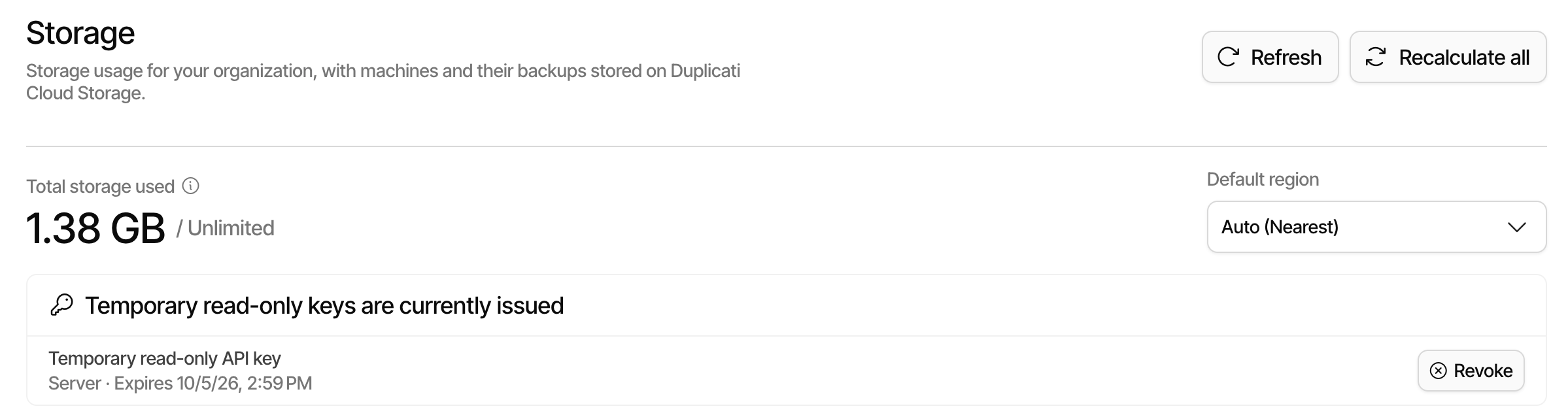
While there are active temporary keys, the **Storage** page shows the section **Temporary read-only keys are currently issued**, which lists each key with the machine it gives access to and the time it expires.
Once the restore has completed, click **Revoke** next to the key and confirm with **Revoke key**. The restore connection string stops working, and any client using it loses access. A restore that is already running may be able to continue for a short while after the key is revoked.
If the key is not revoked, it stops working when it expires after 7 days. Rotating or revoking the storage API key for the machine also revokes the temporary keys for the machine.
## Troubleshooting
| Message | Cause and solution |
| -------------------------------------------------------------- | ------------------------------------------------------------------------------------------------------------------------------------------------------------------- |
| Connect to the console to use Duplicati storage | The machine is not connected to the console. Connect the machine, or use a restore connection string if you only need to restore. |
| An API key with storage access is required | The machine has no storage API key. Issue one from the **Machines** page in the console. |
| The upload failed because the storage quota is exceeded | The organization is over the quota. Remove data that is no longer needed, or purchase more storage. |
| The operation failed because the account is disabled | The subscription has expired or the account is disabled. Check the subscription under **Settings → Subscription**, or contact Duplicati support. |
| The upload failed because uploads are disabled for the account | Uploads are blocked for the organization, usually because of the quota or the subscription. Restores are still possible. |
| API key is read-only | The key is a temporary read-only key, which can only be used to restore. |
| API key expired | The restore connection string is more than 7 days old, or has been revoked. Issue a new one from the console. |
| No backups found from this machine | The machine has not stored any backups, or the restore connection string was issued for another machine. Click **Try again**, or issue a key for the right machine. |
| Machine does not have a license | Keys can only be issued for machines that have a license. Assign a license to the machine and try again. |
---
# Agent Instructions
This documentation is published with GitBook. GitBook is the documentation platform designed so that both humans and AI agents can read, navigate, and reason over technical content effectively. Learn more at gitbook.com.
## Querying This Documentation
If you need additional information that is not directly available in this page, you can query the documentation by asking a question.
Perform an HTTP GET request on the following URL with the `ask` and `goal` query parameters:
```
GET https://docs.duplicati.com/duplicati-console/duplicati-storage.md?ask=&goal=
```
`ask` is the immediate question: it should be specific, self-contained, and written in natural language.
`goal` is what the user is ultimately trying to achieve, the reason they need the answer. Sharing it helps GitBook give you a better, more relevant answer. A goal is most helpful when it describes the outcome the user wants rather than restating the question. For example, with `ask=how do I create an API token`, a goal like `automate deployments from our CI pipeline` lets GitBook tailor the answer to that use case.
The response will contain a direct answer to the question and relevant excerpts and sources from the documentation.
Use this mechanism when the answer is not explicitly present in the current page, you need clarification or additional context, or you want to retrieve related documentation sections.