> For the complete documentation index, see [llms.txt](https://docs.duplicati.com/llms.txt). Markdown versions of documentation pages are available by appending `.md` to page URLs; this page is available as [Markdown](https://docs.duplicati.com/configuration-and-management/import-and-export-backup-configurations.md).
# Import and export backup configurations
This page describes how to import and export configurations from Duplicati
While it is not required that you keep a copy of the backup configuration, it can sometimes be convenient to have all settings related to a backup stored in a single file.
## Export
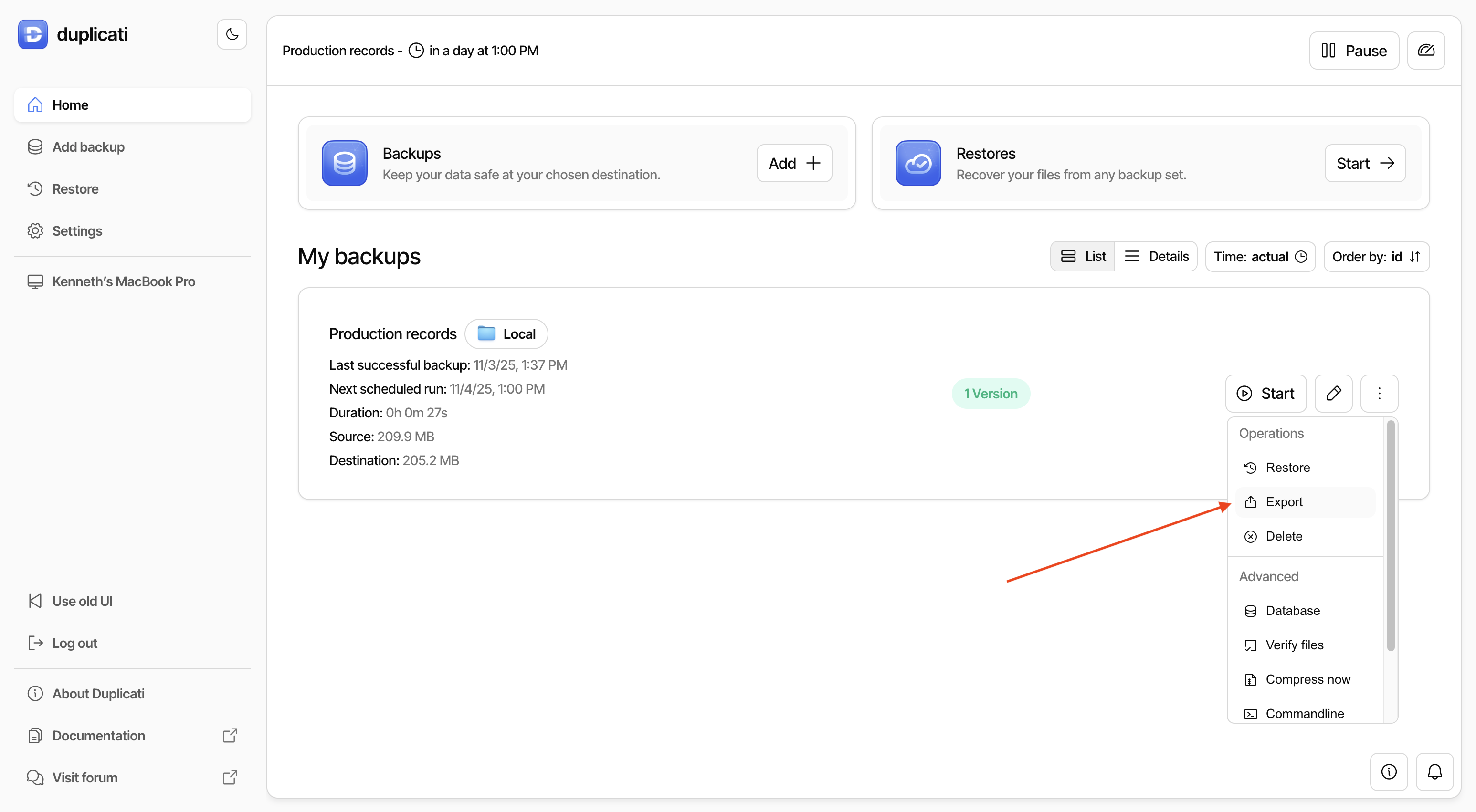
To export from within the user interface, expand the backup configuration and click "Export ..."
Expanded backup configuration
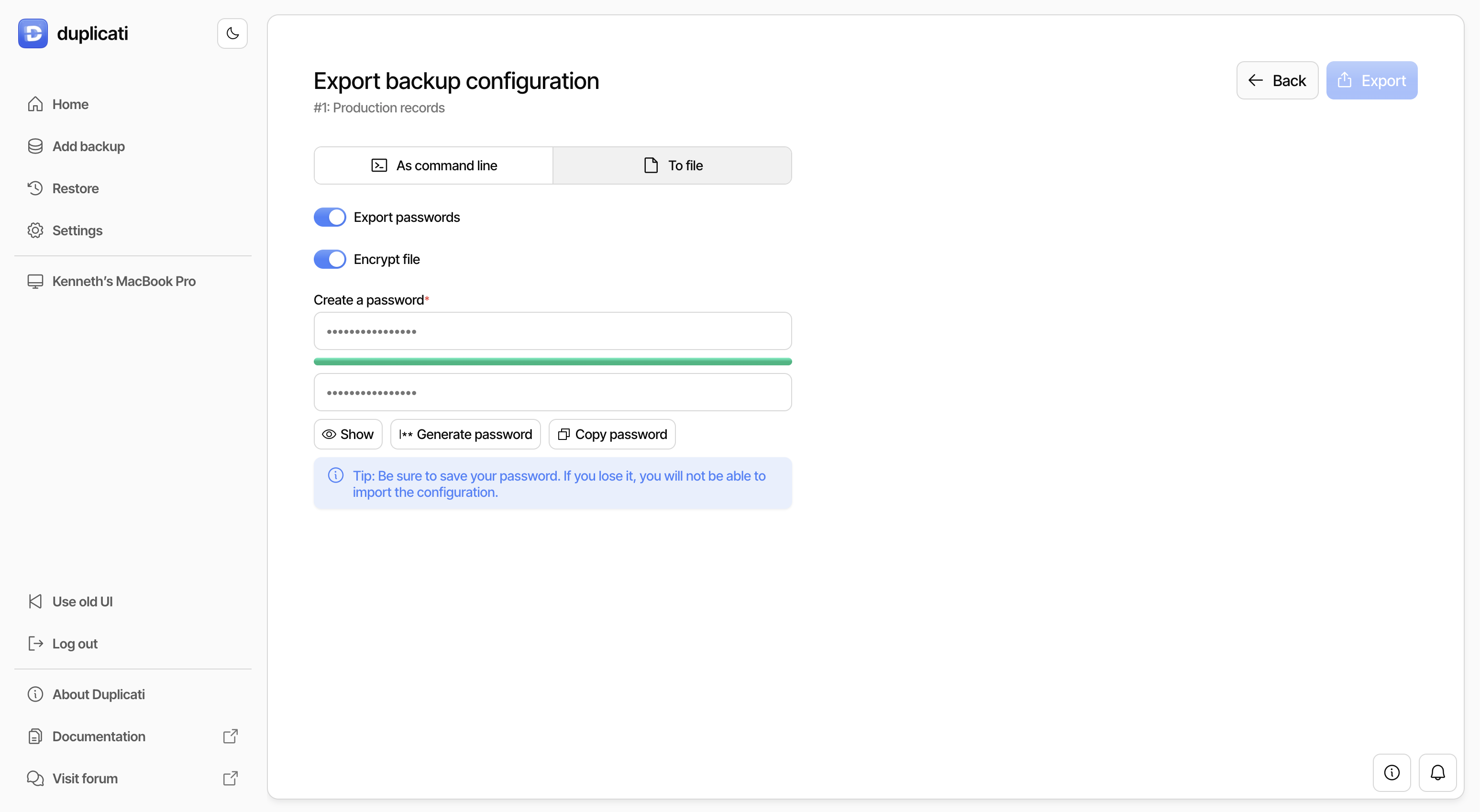
Choosing export options
On this page you should select "To File", which is default. The option to export "As commandline..." is not covered here, but allows you to get a string that can be used with the [Duplicati CLI executable](/duplicati-programs/command-line-interface-cli.md).
You then need to decide on how to handle secrets stored in the configuration. Since these secrets include both the credentials to connect to the remote destination as well as the encryption passphrase, it is important that the exported file is protected.
You can choose to not include any secrets by unchecking the "Export passwords" option. The resulting file will then not contain the secrets and you need to store them in a different place (credential vault, keychain, etc).
You can also choose to encrypt the file before exporting it. If you choose this option, make sure you choose a strong unique passphrase, and store that passphrase in a safe location.
After completing the export, you will get a file containing the backup configuration. The file is in JSON format and optionally encrypted with [AESCrypt](/using-tools/encrypting-and-decrypting-files.md).
## Import configuration
With an exported configuration, you can delete an existing configuration and re-create it by importing the configuration. You can optionally edit the parameters so the re-created backup configuration differs from the original.
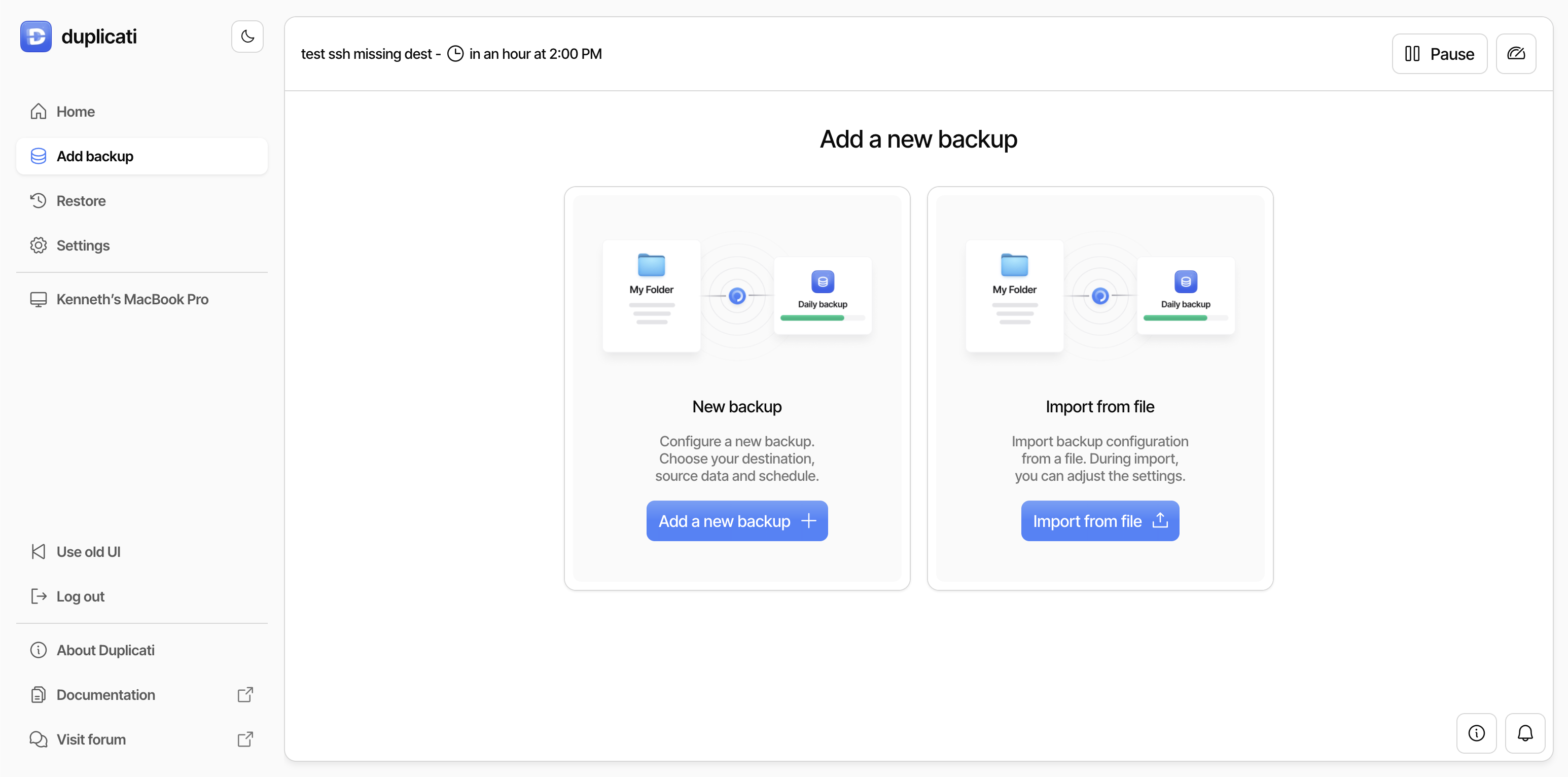
To import a configuration, go to the "Add backup" page and choose "Import from file":
Adding a backup
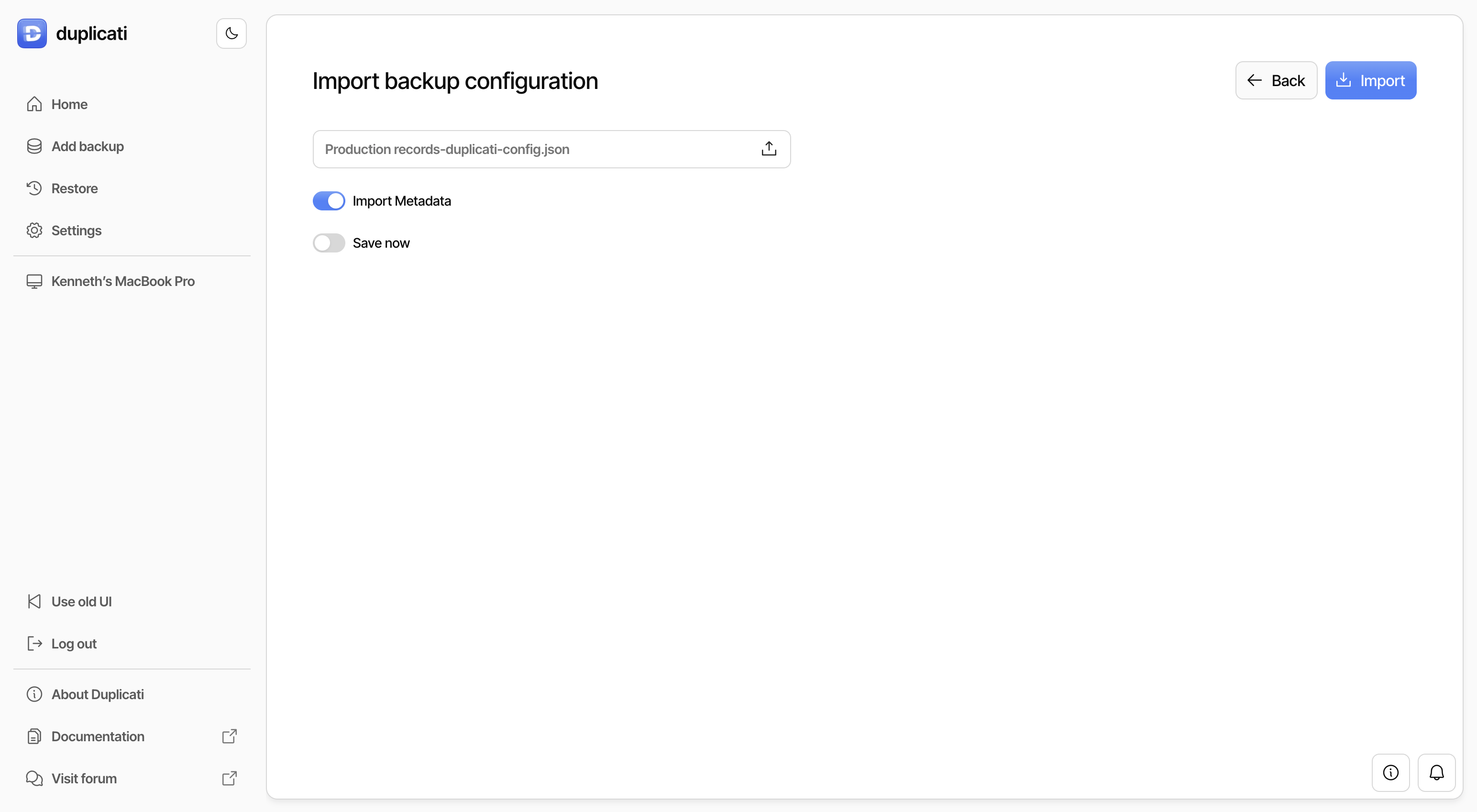
Choosing import options
Pick the file or drag-n-drop it on the file chooser. If the file is encrypted, provide the file encryption passphrase here as well.
The option to "Import metadata" will create the new backup configuration and restore the statistics, including backup size, number of versions, etc. from the data in the file. If not checked, these will not be filled, and will be updated when the first backup is executed.
If the option "Save immediately" is checked, the backup will be created when clicking import, skipping the option to edit the backup configuration.
When all is configured as desired, click the "Import" button. If you have not checked "Save immediately", the flow will look like it does when [setting up the initial backup](/getting-started/set-up-a-backup-in-the-ui.md).
If the backup was created with the [store-task-config](#storing-configuration-with-the-backup) option enabled, you can also retrieve the configuration directly from the backup destination when restoring or setting up a new machine.
## Storing configuration with the backup
Duplicati can automatically store backup configurations together with the backup data. This makes it easier to recreate a backup job when restoring on a new machine or after losing the local Duplicati database.
{% hint style="info" %}
Avaliable from Duplicati 2.4
{% endhint %}
The behavior is controlled by the `--store-task-config` advanced option, which supports the following modes:
| Mode | Description |
| ---------------------------- | ------------------------------------------------------------------------------------------------------------------------------------------------------ |
| `Auto` (default) | For encrypted backups, behaves as `Self`. For unencrypted backups, behaves as `None`. |
| `None` | No configuration is stored with the backup. |
| `Self` | Stores the current backup configuration with all secrets unconditionally removed. |
| `All` | Stores the configurations of **all** backups defined in Duplicati, with all secrets unconditionally removed. |
| `SelfWithSecrets` | Stores the current backup configuration with all secrets included. If the backup is not encrypted, Duplicati logs a warning and reverts to `Self`. |
| `AllWithSecrets` | Stores the configurations of **all** backups with all secrets included. If the backup is not encrypted, Duplicati logs a warning and reverts to `All`. |
| `SelfWithUnencryptedSecrets` | Stores the current backup configuration with all secrets included, even if the backup is not encrypted. |
| `AllWithUnencryptedSecrets` | Stores the configurations of **all** backups with all secrets included, even if the backup is not encrypted. |
When a configuration is stored with the backup, it is saved as a control file named `task-setup.json` and uploaded alongside the backup data. You can later retrieve and import these stored configurations through the Duplicati user interface when connecting to the backup destination.
For backwards compatibility, the option also accepts boolean values: `true` is treated as `Self`, and `false` is treated as `None`.
### Security considerations
Storing backup configurations in the remote backup introduces security risks that should be carefully evaluated before changing the default settings.
**Leaked secrets:** Backup configurations can contain sensitive data such as destination credentials, encryption passphrases, API keys, SMTP credentials for notifications, and paths to remote sources. If these secrets are included in a stored configuration, anyone who gains access to the backup data can extract them. Even if secrets are removed, the configuration may still reveal server names, paths, and other infrastructure details that aid an attacker.
**Cross-contamination between backups:** If you use the `All`, `AllWithSecrets`, or `AllWithUnencryptedSecrets` mode, a single compromised backup destination can expose the complete set of backup configurations. An attacker who obtains access to one backup can extract the credentials for every other backup destination, notification service, and remote source configured in Duplicati. This cross-contamination means that one leak can cascade into a compromise of multiple systems.
**Additional targets and remote sources:** A backup configuration can reference additional storage targets, secondary destinations, SMTP servers for notifications, and remote sources. When secrets are included in the stored configuration—such as with `SelfWithSecrets` or any of the unencrypted-secrets modes—a single leaked backup can provide an attacker with credentials to access these connected systems. This means compromising one backup destination could allow an attacker to disable secondary targets, read notification credentials, or access remote source locations.
**Default protection:** The default `Auto` mode is designed to minimize these risks. When the backup is encrypted, it stores only the current job's configuration and unconditionally strips all secrets (`Self`). When the backup is unencrypted, it stores nothing (`None`). This default ensures that a leaked backup does not contain credentials that can be used to access other systems.
If you choose to override the defaults—especially by using `All`, `AllWithSecrets`, `AllWithUnencryptedSecrets`, `SelfWithUnencryptedSecrets`, or any mode that includes secrets in an unencrypted backup, ensure that the backup destination is strongly protected and that you fully understand the risk of cross-contamination across all your backups, sources, and notification services.
---
# Agent Instructions
This documentation is published with GitBook. GitBook is the documentation platform designed so that both humans and AI agents can read, navigate, and reason over technical content effectively. Learn more at gitbook.com.
## Querying This Documentation
If you need additional information that is not directly available in this page, you can query the documentation by asking a question.
Perform an HTTP GET request on the following URL with the `ask` and `goal` query parameters:
```
GET https://docs.duplicati.com/configuration-and-management/import-and-export-backup-configurations.md?ask=&goal=
```
`ask` is the immediate question: it should be specific, self-contained, and written in natural language.
`goal` is what the user is ultimately trying to achieve, the reason they need the answer. Sharing it helps GitBook give you a better, more relevant answer. A goal is most helpful when it describes the outcome the user wants rather than restating the question. For example, with `ask=how do I create an API token`, a goal like `automate deployments from our CI pipeline` lets GitBook tailor the answer to that use case.
The response will contain a direct answer to the question and relevant excerpts and sources from the documentation.
Use this mechanism when the answer is not explicitly present in the current page, you need clarification or additional context, or you want to retrieve related documentation sections.