> For the complete documentation index, see [llms.txt](https://docs.duplicati.com/llms.txt). Markdown versions of documentation pages are available by appending `.md` to page URLs; this page is available as [Markdown](https://docs.duplicati.com/automation-and-integration/microsoft-365-credentials-setup.md).
# Microsoft 365 credentials setup
This page describes how to create the Microsoft Entra ID app registration and credentials that Duplicati uses to back up and restore Microsoft 365
Duplicati accesses a Microsoft 365 tenant as an application, through the Microsoft Graph API. Before you can set up a backup, a tenant administrator needs to create an **app registration** in Microsoft Entra ID, grant it the required permissions, and create a credential for it.
When you are done, you have the three values that Duplicati asks for:
* **Tenant ID**: The Directory (tenant) ID of the Microsoft 365 tenant.
* **Client ID**: The Application (client) ID of the app registration.
* **Client secret**: A secret value created for the app registration. Alternatively, a certificate can be used with Duplicati, but not with [managed backups in the Duplicati Console](/duplicati-console/managed-microsoft-365-backup.md).
The same steps apply whether you use the [Microsoft 365 backup source in Duplicati](/automation-and-integration/office-365-backup-and-restore.md) or a [managed Microsoft 365 backup](/duplicati-console/managed-microsoft-365-backup.md) in the Duplicati Console.
{% hint style="info" %}
Registering an application can be done by a user with the **Application Administrator** or **Cloud Application Administrator** role. Granting admin consent for Microsoft Graph application permissions requires the **Privileged Role Administrator** or **Global Administrator** role.
{% endhint %}
### Decide on backup and restore credentials
A backup only needs read permissions, while a restore into the tenant needs write permissions. You can choose between:
* **One app registration for both backup and restore**: Simple to set up, but the credentials stored with the backup can also modify data in the tenant.
* **Separate app registrations**: The app registration used for the backup only gets read permissions. A second app registration with write permissions is created, or temporarily granted permissions, when you need to restore. This is the most secure option.
If you restore into a **different tenant**, the app registration with write permissions must be created in the target tenant.
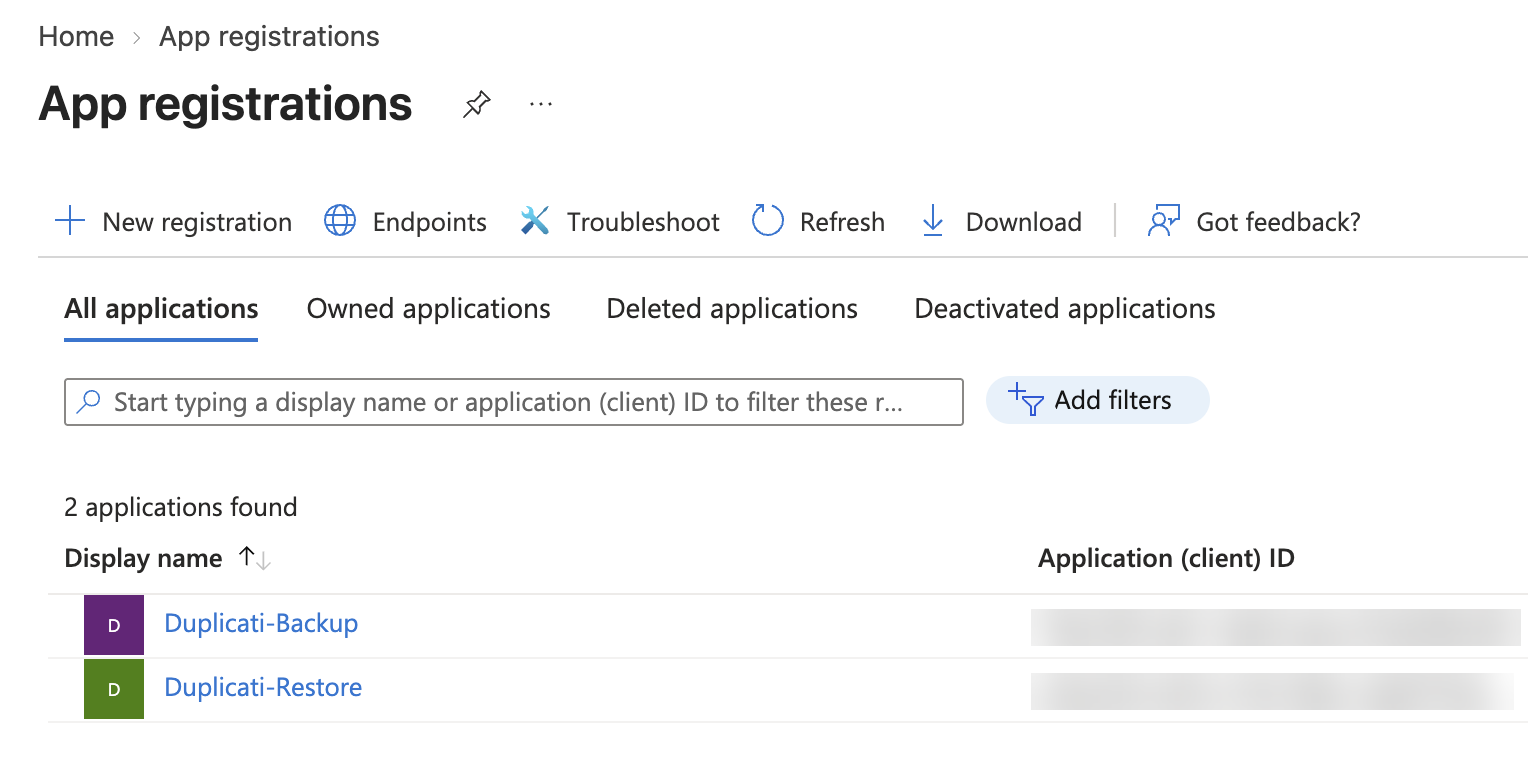
The screenshots on this page show a tenant that uses separate app registrations, named "Duplicati-Backup" and "Duplicati-Restore":
### Step 1: Register the application
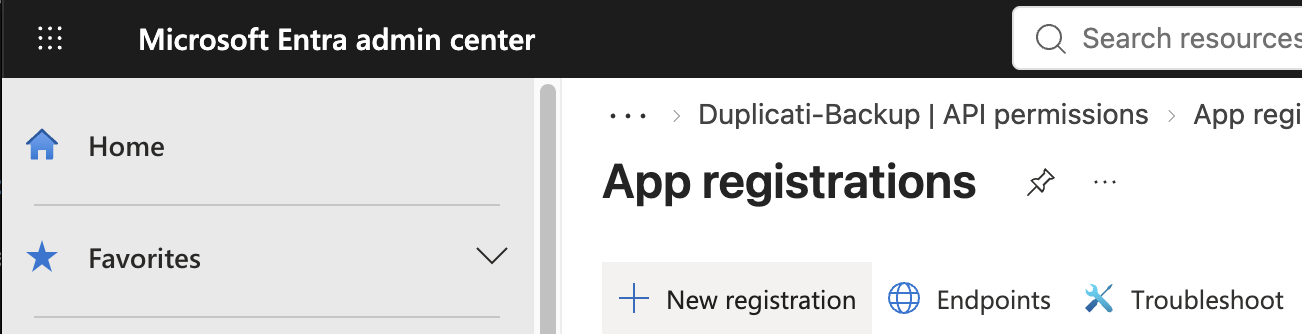
1. Sign in to the [Microsoft Entra admin center](https://entra.microsoft.com).
2. In the menu, go to **Entra ID → App registrations**.
3. Click **New registration**.
4. Give the application a name, such as "Duplicati-Backup".
5. Under **Supported account types**, choose **Single tenant only** for your tenant.
6. Leave the **Redirect URI** fields empty. Duplicati does not use an interactive sign-in, so no redirect URI is needed.
7. Click **Register**.
### Step 2: Note the tenant ID and client ID
After the application is registered, the **Overview** page of the app registration is shown. Copy these two values and keep them for later:
* **Application (client) ID**: Used as the **Client ID** in Duplicati.
* **Directory (tenant) ID**: Used as the **Tenant ID** in Duplicati.
The **Object ID** is not used by Duplicati.
### Step 3: Add the API permissions
1. In the app registration, go to **API permissions**.
2. The new app registration has the delegated permission `User.Read` by default. Duplicati does not use it, so you can remove it by clicking the **...** menu next to it and choosing **Remove permission**.
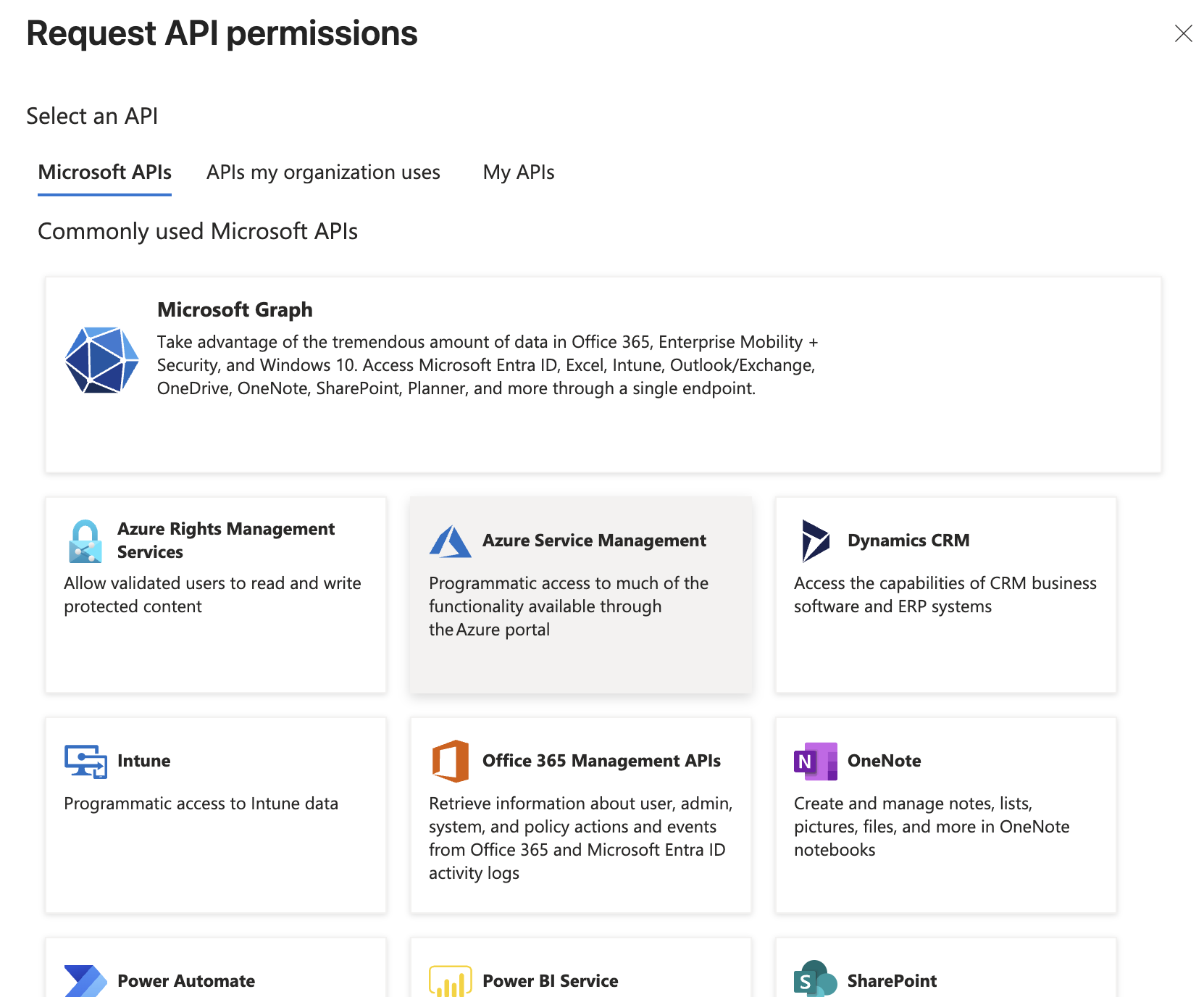
3. Click **Add a permission** and choose **Microsoft Graph**.
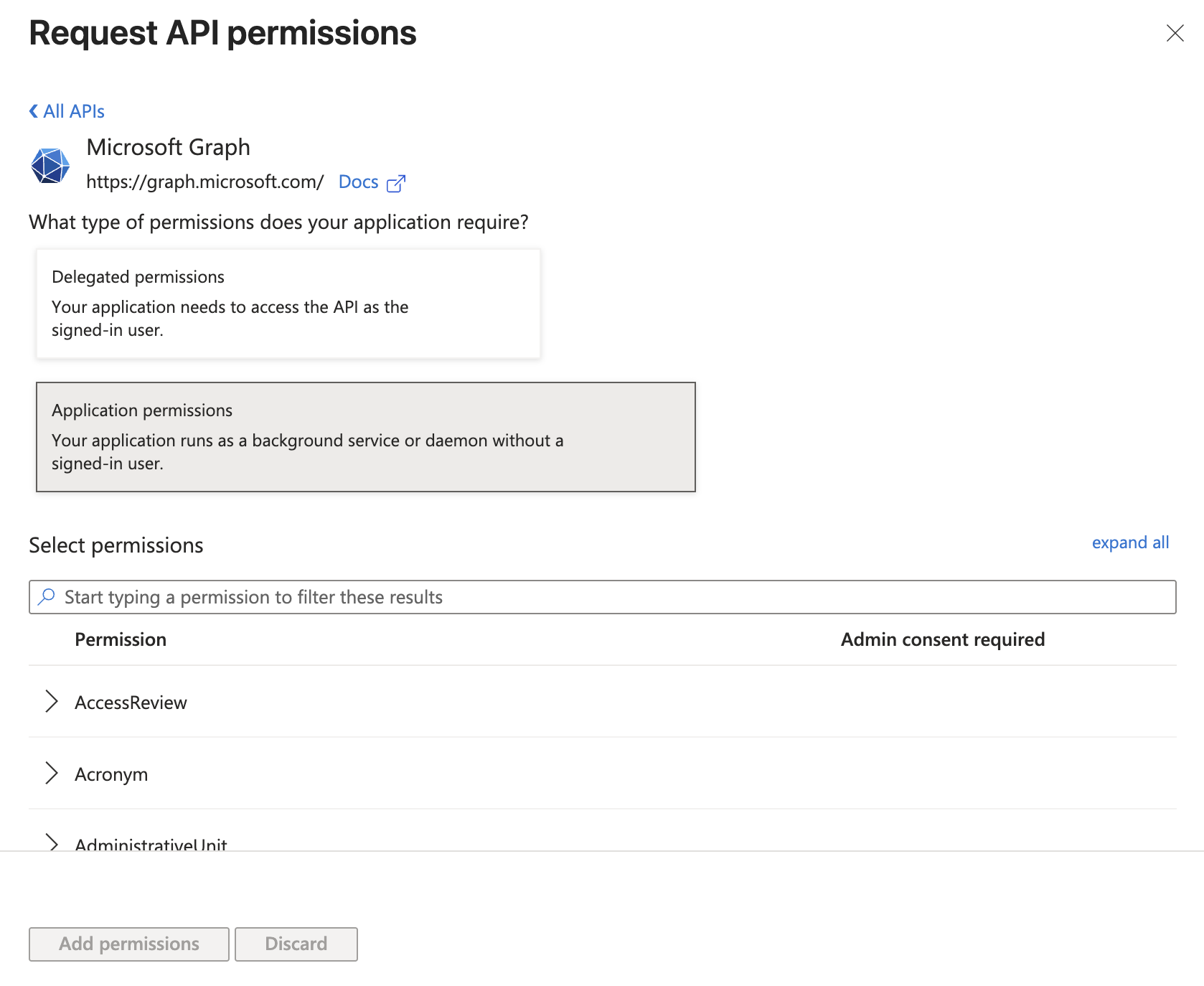
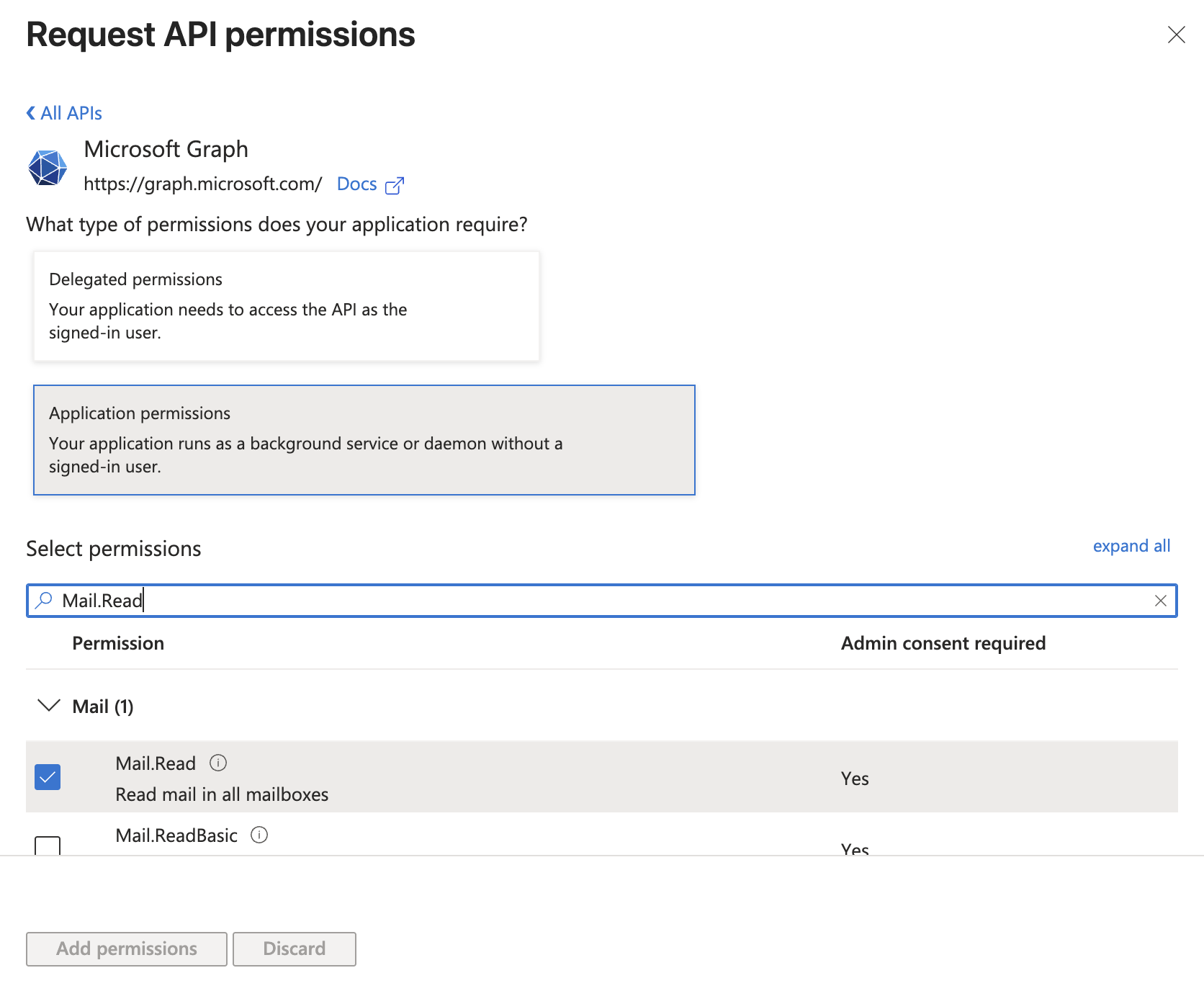
4. Choose **Application permissions**. Duplicati does not use delegated permissions, so permissions added as delegated permissions have no effect.
5. Use the search field to find each of the permissions from the list below, check it, and click **Add permissions** when all are selected.
Choose the list that matches how the app registration is used:
{% tabs %}
{% tab title="Backup only" %}
```
User.Read.All
Group.Read.All
Mail.Read
MailboxSettings.Read
Calendars.Read
Contacts.Read
Files.Read.All
Sites.Read.All
Notes.Read.All
Tasks.Read.All
TeamMember.Read.All
ChannelMessage.Read.All
Chat.Read.All
```
{% endtab %}
{% tab title="Restore only" %}
```
User.ReadWrite.All
Group.ReadWrite.All
Mail.ReadWrite
MailboxSettings.ReadWrite
Calendars.ReadWrite
Contacts.ReadWrite
Files.ReadWrite.All
Sites.ReadWrite.All
Notes.ReadWrite.All
Tasks.ReadWrite.All
Channel.Create
ChannelMessage.Read.All
Teamwork.Migrate.All
```
{% endtab %}
{% tab title="Backup and restore" %}
```
User.ReadWrite.All
Group.ReadWrite.All
Mail.ReadWrite
MailboxSettings.ReadWrite
Calendars.ReadWrite
Contacts.ReadWrite
Files.ReadWrite.All
Sites.ReadWrite.All
Notes.ReadWrite.All
Tasks.ReadWrite.All
Channel.Create
ChannelMessage.Read.All
Teamwork.Migrate.All
TeamMember.Read.All
Chat.Read.All
```
{% endtab %}
{% endtabs %}
If you do not want to back up some types of data, such as Teams chats, you can leave out the permissions for those types and exclude the types in the backup configuration. See the [API permissions reference](/automation-and-integration/office-365-backup-and-restore.md#api-permissions-reference) for what each permission is used for, and which permissions are needed for each data type.
### Step 4: Grant admin consent
Application permissions are not active until an administrator has consented to them for the tenant.
1. On the **API permissions** page, click **Grant admin consent for *****your tenant***.
2. Confirm by clicking **Yes**.
3. Check that the **Status** column shows a green check mark and "Granted for *your tenant*" for every permission.
The example below shows the 13 permissions for a backup-only app registration after admin consent was granted:
{% hint style="warning" %}
If you add more permissions later, you need to grant admin consent again. Permissions that show "Not granted" are not included in the access token, and the backup or restore of the corresponding data fails.
{% endhint %}
### Step 5: Create a client secret
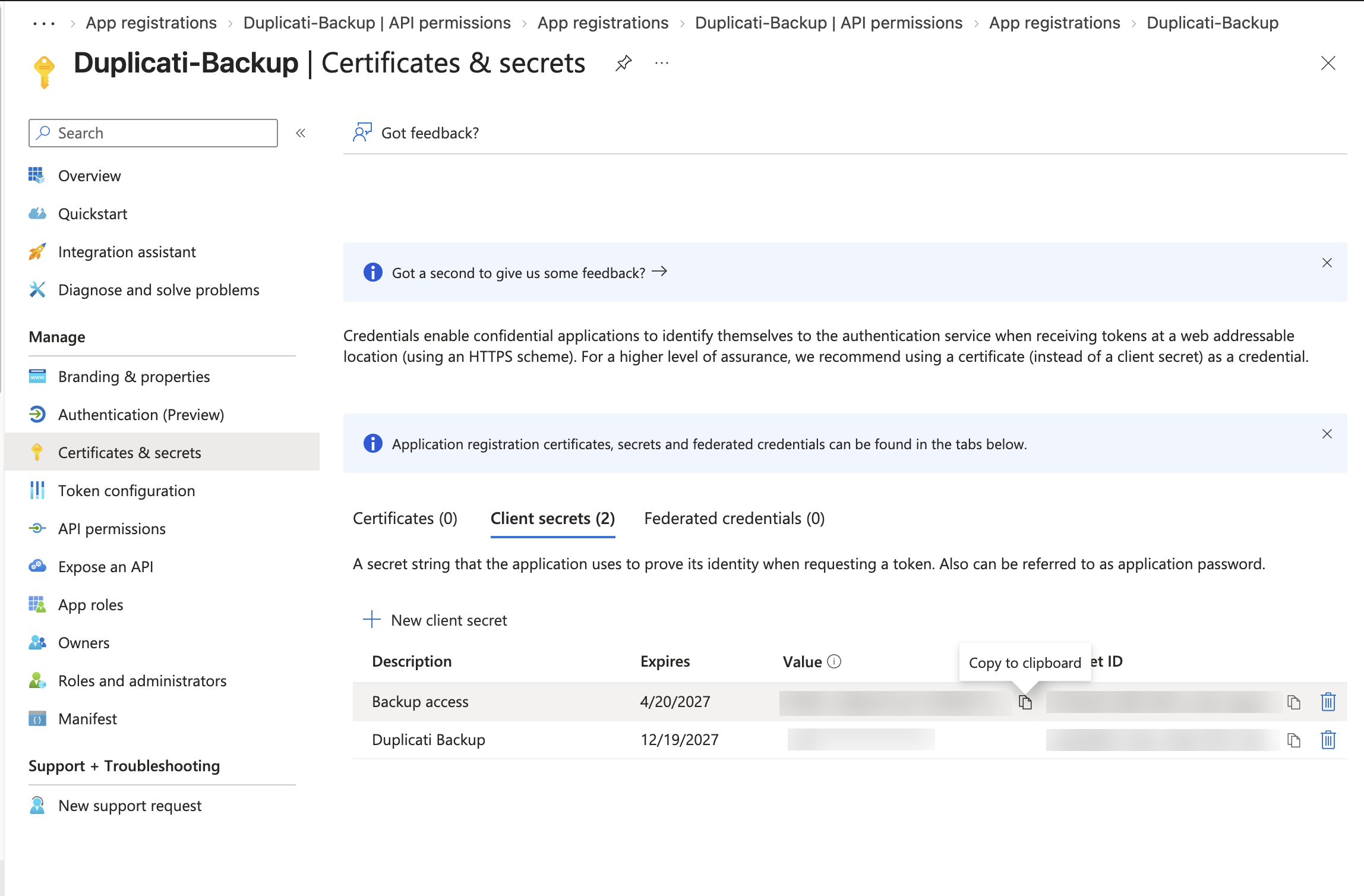
1. In the app registration, go to **Certificates & secrets**.
2. On the **Client secrets** tab, click **New client secret**.
3. Enter a description, such as "Backup access", and choose when the secret expires.
4. Click **Add**.
5. Copy the **Value** of the new secret right away. The value is only shown once, and cannot be retrieved after you leave the page. Note that the **Secret ID** is not the secret, and cannot be used in Duplicati.
{% hint style="warning" %}
Client secrets expire, with a maximum lifetime of 24 months. Make a note of the expiry date, and create a new secret and update the backup configuration before the old secret expires. When the secret has expired, the backups fail.
{% endhint %}
#### Alternative: Use a certificate
Instead of a client secret, the Duplicati Microsoft 365 backup source can authenticate with an X.509 certificate. Certificates are not supported for managed backups in the Duplicati Console.
1. Create a certificate with a private key, for example a self-signed certificate. Export the certificate with the private key as a PKCS#12 file (`.pfx` or `.p12`), optionally protected with a password, and export the public part as a `.cer`, `.pem` or `.crt` file.
2. In the app registration, go to **Certificates & secrets**, choose the **Certificates** tab, and click **Upload certificate**.
3. Select the public certificate file (not the file with the private key), optionally enter a description, and click **Add**. The certificate is then listed with its thumbprint and expiry date.
4. In Duplicati, supply the client ID and set `--office365-certificate-path` to the path of the PKCS#12 file and, if the file is password protected, `--office365-certificate-password` to the password.
### Step 6: Use the credentials in Duplicati
Enter the tenant ID, client ID and client secret in Duplicati:
* For the Duplicati backup source, follow [Configure Microsoft 365 backup](/automation-and-integration/office-365-backup-and-restore.md#configure-microsoft-365-backup).
* For a managed backup, follow [Create a managed backup](/duplicati-console/managed-microsoft-365-backup.md#create-a-managed-backup).
Use the test function to check that the credentials work. In the Duplicati Console, the **Test permissions** function shows which of the required permissions are granted to the app registration, and which are missing.
### Troubleshooting
| Problem | Solution |
| ------------------------------------------------------------ | ------------------------------------------------------------------------------------------------------------------------------------------------------------------ |
| `AADSTS7000215: Invalid client secret provided` | The Secret ID was used instead of the secret value, or the value was copied incorrectly. Create a new client secret and copy the **Value**. |
| `AADSTS7000222: The provided client secret keys are expired` | Create a new client secret and update the backup configuration. |
| `AADSTS700016: Application not found in the directory` | The client ID is wrong, or the tenant ID belongs to a different tenant than the app registration. |
| `AADSTS90002: Tenant not found` | Check the tenant ID. Both the tenant GUID and a verified domain, such as `contoso.onmicrosoft.com`, can be used. |
| `403 Forbidden` or "Insufficient privileges" for some data | A permission is missing, was added as a delegated permission, or has not been granted admin consent. Check the API permissions page and grant admin consent again. |
| Permissions were just granted but are still missing | Changes to permissions can take a few minutes to be reflected in new access tokens. Wait a few minutes and test again. |
---
# Agent Instructions
This documentation is published with GitBook. GitBook is the documentation platform designed so that both humans and AI agents can read, navigate, and reason over technical content effectively. Learn more at gitbook.com.
## Querying This Documentation
If you need additional information that is not directly available in this page, you can query the documentation by asking a question.
Perform an HTTP GET request on the following URL with the `ask` and `goal` query parameters:
```
GET https://docs.duplicati.com/automation-and-integration/microsoft-365-credentials-setup.md?ask=&goal=
```
`ask` is the immediate question: it should be specific, self-contained, and written in natural language.
`goal` is what the user is ultimately trying to achieve, the reason they need the answer. Sharing it helps GitBook give you a better, more relevant answer. A goal is most helpful when it describes the outcome the user wants rather than restating the question. For example, with `ask=how do I create an API token`, a goal like `automate deployments from our CI pipeline` lets GitBook tailor the answer to that use case.
The response will contain a direct answer to the question and relevant excerpts and sources from the documentation.
Use this mechanism when the answer is not explicitly present in the current page, you need clarification or additional context, or you want to retrieve related documentation sections.